

.png?width=120&height=55&name=Blitzz-Logo-right%20white%20eyes%20-%20not%20transparent%20(3).png)
When a company first starts evaluating remote support tools, the question usually gets framed like this: "Should we get a co-browsing tool or a remote desktop tool?"
It sounds like a direct comparison. It isn't.
Co-browsing and remote desktop software are not two versions of the same product. They solve fundamentally different problems, serve fundamentally different audiences, and carry fundamentally different implications for security, compliance, and customer trust. Choosing the wrong one doesn't just mean wasted budget — it means a support experience that frustrates the people it was meant to help, exposes data it was meant to protect, or locks IT teams into workflows that were never built for their actual job.
This guide cuts through the confusion. We'll define each category clearly, compare them across every dimension that matters, and give you a decision framework that tells you exactly which tool — or combination of tools — your team needs.

What Is Remote Desktop Software?
Remote desktop software allows one person to take full control of another computer — viewing its screen, using its keyboard and mouse, accessing its files, and running its applications — as if they were sitting in front of it.
The technical mechanism is usually Remote Desktop Protocol (RDP), developed by Microsoft, or a proprietary equivalent like the one TeamViewer uses. The connection travels over the internet, the remote operator sees a live feed of the target machine's screen, and every input they make on their own device is transmitted and executed on the target.
The key characteristic of remote desktop access is total device control. When your IT technician connects to a remote machine, they can access anything on it: every open file, every application, every folder, every saved password. They can install software, modify system settings, read emails, pull files.
This is exactly what's needed for IT support. When a server needs patching, when a workstation has a configuration problem, when a critical application won't launch — remote desktop gives the technician everything they need to diagnose and fix the problem without leaving their desk.
Common remote desktop tools: TeamViewer, AnyDesk, Microsoft RDP, Splashtop, LogMeIn, Chrome Remote Desktop, ConnectWise ScreenConnect.
The installation reality: Remote desktop almost always requires the target machine to have software installed and running — either permanently (for unattended access) or at least temporarily (for attended sessions). This means both sides need to take action before a session can start.
What Is Co-Browsing?
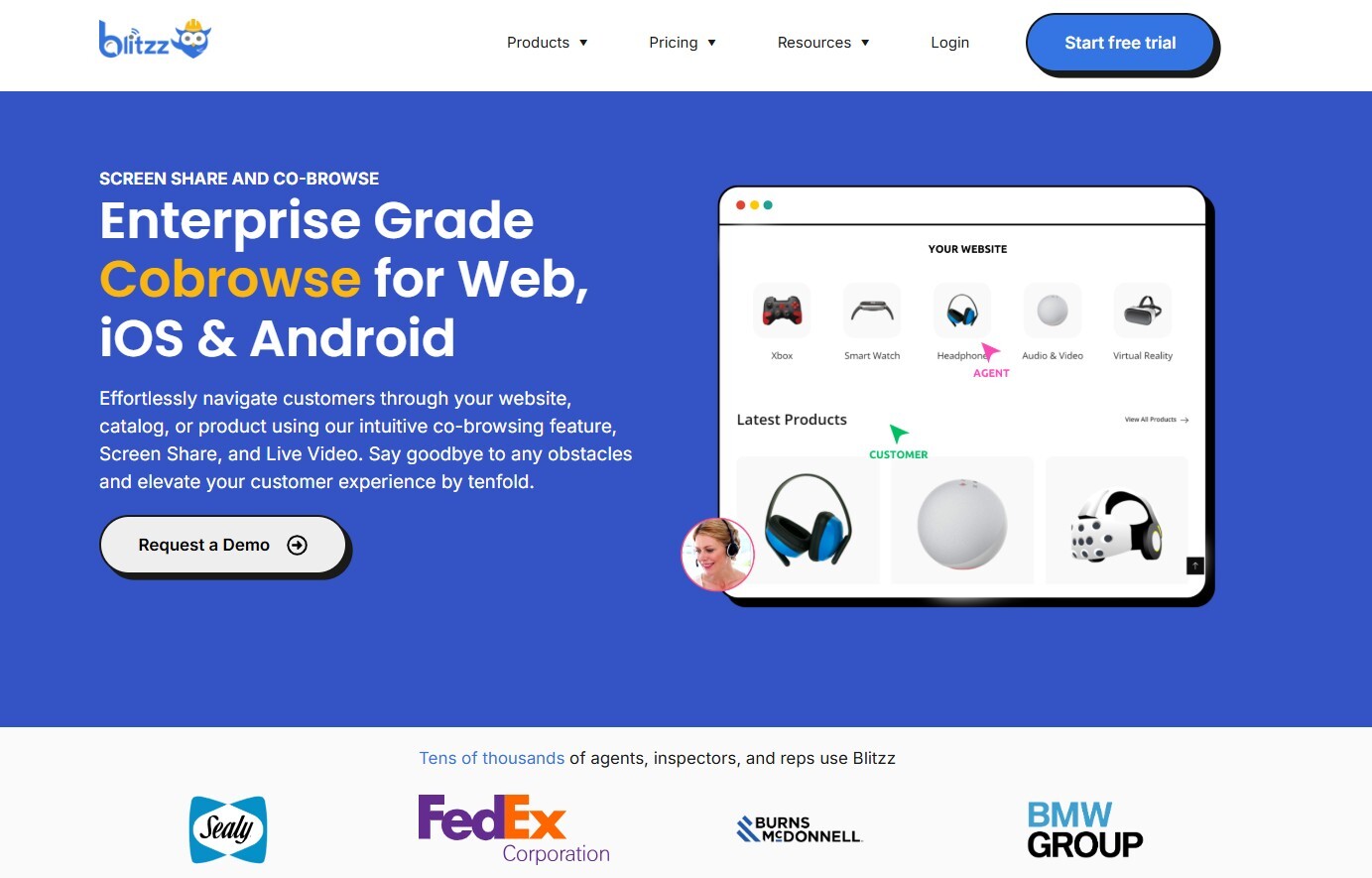
Co-browsing — short for collaborative browsing — allows an agent to join a customer's browser session in real time, seeing exactly the same page, scroll position, and form content the customer sees, and interacting with it alongside them.
The critical distinction from remote desktop is scope. Co-browsing is intentionally limited to the browser window. The agent cannot see other open tabs, access local files, control desktop applications, or interact with anything outside the shared web session. They see what the customer is looking at. Nothing more.
The technical mechanism is also different. Screen sharing takes a pixel-based approach — snapshots of the entire screen are streamed continuously. Co-browsing technology only streams events, which requires much less bandwidth and is far more secure. Rather than transmitting pixels, co-browsing platforms like Blitzz transmit the underlying page events — clicks, scrolls, inputs — creating a synchronized view without the bandwidth overhead of full screen streaming.
This architecture has a practical consequence: co-browsing only grants screen control within a specific browser window or application, which protects the user's sensitive data on other tabs or applications.
Common co-browsing tools: Blitzz Co-Browse, Surfly, Fullview, Glance, Upscope, Unblu, Median.
The no-download reality: Modern co-browsing platforms — including Blitzz Co-Browse — require zero installation on the customer's side. The customer doesn't download anything. They're simply using their browser, and the agent joins their session through a lightweight SDK embedded in the company's website or application. There's nothing to install, no link to click, no tech support required.
The Core Difference, Stated Simply
Here is the clearest way to understand the distinction:
Remote desktop gives you control of a computer.
Co-browsing gives you a shared view of a web session.
If your job is IT support for employees, systems administration, or managing devices your organization owns — you need remote desktop. You need that full device control to do your job.
If your job is helping customers navigate your website, complete a form, troubleshoot your application, or understand your product — you need co-browsing. The customer's files, apps, and other browser tabs are irrelevant to your job, and having access to them creates risk without benefit.
The confusion arises because both tools are used in "remote support" scenarios. But the support objects are completely different: remote desktop supports computers, while co-browsing supports experiences.
Side-by-Side Comparison: Co-Browsing vs Remote Desktop
| Feature | Co-Browsing | Remote Desktop |
|---|---|---|
| Scope of access | Browser/web session only | Full device control |
| Installation required | None (customer side) | Usually yes |
| Privacy for user | High — other tabs/files hidden | Low — full device visible |
| Compliance risk | Low | High (PII, GDPR, HIPAA exposure) |
| Speed to connect | Seconds — no setup needed | Minutes — install, configure, connect |
| Best for | Customer-facing support | IT/internal support |
| Customer comfort | High — limited, transparent access | Low — full access feels invasive |
| Security model | Isolated to session | Full device trust required |
| Data handling | Sensitive fields can be masked | All data visible |
| Bandwidth | Low (event streaming) | High (pixel streaming) |
| Session recording | Yes, browser session | Yes, full screen |
| AR visual support | Blitzz extends to camera/physical | Not applicable |
| Typical users | Customer support, sales, CX | IT help desk, sysadmins, MSPs |
| Audit trail | Session-level, GDPR-friendly | Device-level, complex to scope |
| Risk of scams | Very low (no device access) | High (full device access) |
When Your Team Needs Remote Desktop
Remote desktop is the right choice when the thing being supported is a device — a computer, server, or endpoint — and the support interaction requires access beyond the browser.
IT Help Desk and Internal Support
When employees contact IT with a problem on their work laptop — an application that won't open, a VPN configuration issue, a printer driver conflict, a system setting that needs to change — the IT technician needs to see the full machine and interact with it directly. Co-browsing cannot solve this. Remote desktop can.
Unattended Device Access
Remote desktop supports unattended sessions — connecting to a device when no user is present to authorize it. This is essential for server maintenance, overnight patching, and monitoring tasks that need to happen outside business hours. Co-browsing, by design, requires someone present on the other side.
Software Installation and Configuration
Installing software, changing system configurations, or troubleshooting application-level issues across a desktop environment requires access that co-browsing doesn't provide. A technician configuring Active Directory, pushing a policy update, or troubleshooting a legacy desktop application needs remote desktop.
Managing Devices Your Organization Owns
The compliance calculus changes significantly when the devices involved are company-owned endpoints rather than customer devices. When your IT team accesses a company laptop, they're accessing a device and data the organization owns. The full-device access model of remote desktop is appropriate and expected.
The Remote Desktop Shortlist for IT Teams
For traditional IT use cases, the strongest options are Splashtop (best value for MSPs and IT teams), ConnectWise ScreenConnect (best for security-first environments), and AnyDesk (best for lightweight, low-cost deployment). For a detailed comparison with pricing, see the 10 Best TeamViewer Alternatives guide at Blitzz.
When Your Team Needs Co-Browsing
Co-browsing is the right choice when the thing being supported is a digital experience — a website, application, form, or workflow — and the person being helped is a customer, not an employee.
Customer-Facing Support on Web Applications
When a customer contacts support because they can't find the cancellation option, can't complete a checkout, are confused by an onboarding flow, or can't configure their account settings — the support agent doesn't need device access. They need to see the same web session the customer is in and guide them through it. Co-browsing solves this in seconds.
More importantly, giving a customer's support agent full device access via remote desktop to solve a web navigation problem is wildly disproportionate to the task. It creates compliance exposure, erodes customer trust, and introduces security risk where none was necessary.
Form Completion Guidance
Insurance claims. Mortgage applications. Benefits enrollment. Tax submissions. Government forms. These interactions combine digital complexity with high stakes — and customers frequently get stuck, submit incorrect information, or abandon the process entirely. A support agent who can see exactly what the customer is looking at and guide them field-by-field resolves these interactions faster and more accurately than any other channel.
Blitzz Co-Browse includes sensitive data masking — financial details, passwords, and personal identifiers are automatically hidden from the agent's view, even during a live session. This is not a feature available in remote desktop software.
Sales Demonstrations and Assisted Selling
When a sales rep is walking a prospect through a pricing page, a feature comparison, or a product configuration workflow, co-browsing creates a fundamentally better experience than screen sharing or verbal description. The prospect sees their own screen, in their own browser, with their own context — and the agent guides them through it in real time. This is particularly powerful for complex B2B products where the buying journey involves multiple decision makers navigating the same interface.
Onboarding and Feature Adoption
For SaaS companies, time-to-value is the most critical metric in customer success. When a new user can't find a feature, doesn't understand a workflow, or is about to churn because they're stuck — a co-browsing session where a CSM guides them directly through the product in their own account context resolves the issue in minutes. No screen sharing lag, no "can you see my screen?", no access to data the CSM doesn't need to see.
Regulated Industries Where Compliance Matters
Co-browsing is different from traditional remote desktop software because it only allows agents access to specific pages, browser windows, or programs, rather than the entire machine. This scoped access model makes co-browsing the appropriate choice in any environment where data access needs to be auditable and limited — banking, insurance, healthcare, government services.
When a customer's full device is accessible, every piece of data on it is potentially in scope for a compliance audit. When only a specific browser session is accessible, the scope is limited, the audit trail is clean, and the risk surface is dramatically smaller.
The Security Gap: Why It Actually Matters
This deserves its own section because it's where the distinction between co-browsing and remote desktop has the most practical consequence.
Remote desktop software has a documented history of enabling fraud and scams — specifically the scenario where a bad actor, posing as technical support, persuades a user to grant them remote desktop access and then uses that access to steal banking credentials, personal data, or files. The reason this scam works is because remote desktop access is genuinely comprehensive — once an attacker has it, they have everything.
Co-browsing is safer than remote access because it only grants screen control within a specific browser window or application, protecting the user's sensitive data on other tabs or applications. Even if a co-browsing session were somehow misused, the attacker can only see the current browser session — not files, not other applications, not system settings, not saved credentials.
For customer-facing support operations, this matters in two directions:
Customer trust: Customers who understand the difference between "an agent who can see my browser session" and "an agent who can control my whole computer" are significantly more comfortable with the former. Granting scoped, limited access to a specific web session feels proportionate. Granting full device control for a billing inquiry does not.
Regulatory posture: When you use screen sharing, you have the option to share a single browser tab or your entire desktop. If you're working with financial documentation, sensitive details such as bank balance or credit card numbers will automatically be shared with all parties. Co-browsing prevents this by design — and the best co-browsing platforms go further by adding automatic masking of sensitive fields during a session.
What About Screen Sharing? Where Does That Fit?
Screen sharing sits between co-browsing and remote desktop — and understanding the difference clarifies all three.
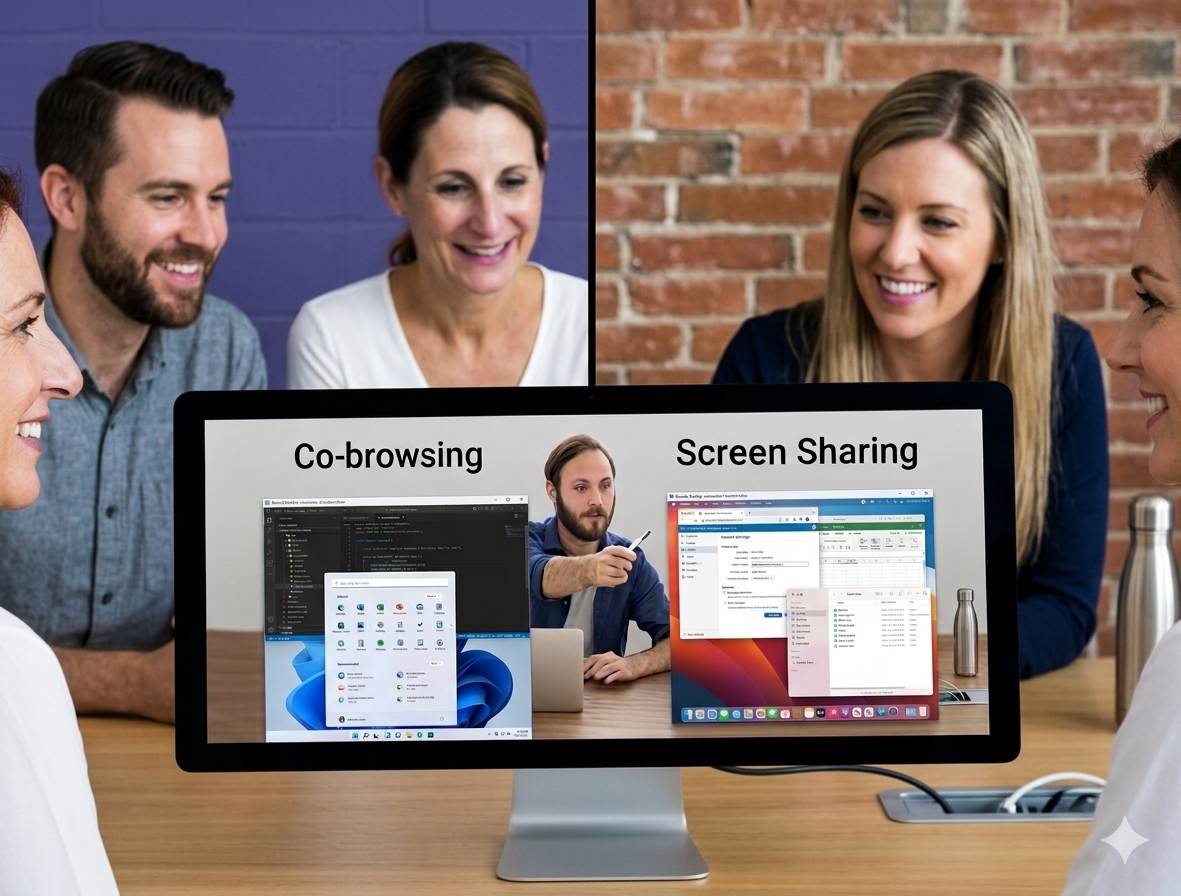
Screen sharing transmits a visual feed of the sharer's screen to one or more viewers. It can be the full desktop or a specific window. Viewers can typically see but not interact — or interact only if control is explicitly handed over. It's built for presentations, demonstrations, and meetings.
Screen sharing works by sharing the entire desktop and takes a pixel-based approach — snapshots of the entire screen are streamed over and over again. Co-browsing technology only streams events, which doesn't require much bandwidth and is more secure.
The practical differences in a customer support context:
- Screen sharing shows the agent what the customer sees, but the agent is a passive observer (unless control is handed over). It requires the customer to actively share. It exposes everything on screen, including potentially sensitive notifications, other tabs, and system information.
- Co-browsing creates a synchronized session where the agent is genuinely alongside the customer in the same web context — not watching a video feed of it. The session is automatically scoped to the relevant application. Sensitive fields are automatically masked. Neither party needs to "share" anything — they're both in the same session.
For customer support, co-browsing is the better tool in almost every scenario where screen sharing would be considered. It's faster, more private, more secure, and more interactive.
The Third Option: Visual Support for the Physical World
There's a scenario that neither co-browsing nor remote desktop handles well: when the thing that needs support isn't on a screen at all.
A customer's smart home device is flashing an error. A field technician can't identify a component. An insurance claimant is trying to describe damage to their property. An equipment operator sees a warning they don't understand.
This is where Blitzz Concierge and Blitzz Inspect extend the model beyond the browser — into the physical world. The customer taps a link, their smartphone camera activates, and a remote expert sees exactly what they see in real time. AR annotation tools let the expert draw on the live camera feed. Remote zoom and flashlight controls give the expert precise visual control. Timestamped photos and session recording create a documented audit trail.
This is the capability that remote desktop and traditional co-browsing both lack — and it's increasingly where the most important support interactions happen. The convergence of co-browsing, visual support, and AR guidance into a single platform is where Blitzz sits: one integrated experience for digital sessions, physical environments, and field inspections.
Blitzz Co-Browse: Built for the Customer Side
Blitzz Co-Browse is purpose-built for customer-facing organizations that need the full scope of what modern co-browsing delivers:
Zero-download for customers. Customers don't install anything. The session starts the moment an agent initiates it — the customer sees the shared session in their existing browser without interruption.
Sensitive data masking. Financial details, passwords, and personal identifiers are automatically masked from the agent's view throughout the session. This is compliance infrastructure, not a toggle.
Session recording and documentation. Every co-browse session is recorded and linked to the customer's account record. Supervisors can review sessions for QA. Agents have a complete history. Auditors have the trail they need.
Native CRM and platform integrations. Blitzz integrates directly with Salesforce, Zendesk, HubSpot, Microsoft Dynamics 365, Genesys, and NICE CXone. Agents launch sessions from within the tools they already use, and all session data syncs back automatically. See the full Blitzz integrations ecosystem.
Escalation to camera. When a browser session reveals a physical-world problem, agents can escalate to a live camera session within Blitzz — without switching tools, without losing session context, and without asking the customer to do anything new beyond tapping "allow" on their camera.
Decision Framework: Which Tool Does Your Team Need?
Use this to cut straight to the right answer for your specific scenario.
Does your team support employees on company-owned devices?
You need remote desktop. Look at Splashtop, AnyDesk, or ConnectWise depending on scale and security requirements.
Does your team help customers navigate your website, app, or digital product?
You need co-browsing. Blitzz Co-Browse if you need a full-featured platform with native CRM integrations; Surfly or Fullview for lighter implementations.
Does your team help customers in regulated industries (banking, insurance, healthcare)?
You need co-browsing specifically — the limited scope access model and automatic data masking make it the compliant choice. Remote desktop creates unacceptable exposure.
Does your team support physical products, field equipment, or environments that can't be seen through a browser?
You need AR visual support. Blitzz Concierge or Blitzz Inspect — browser-free, camera-based, AR-annotated.
Does your team do all of the above?
You need a platform that handles digital co-browsing and physical visual support on one integrated system, with shared integrations, shared session history, and shared documentation. That's exactly the case Blitzz was built for.
Frequently Asked Questions
What is the main difference between co-browsing and remote desktop?
Remote desktop gives a technician full control of another device — its screen, files, applications, and settings. Co-browsing gives an agent a synchronized, shared view of a specific browser session — seeing exactly what the customer sees on a web page, and guiding them through it, without accessing anything outside that session. Remote desktop is built for IT support of devices. Co-browsing is built for customer support of digital experiences.
Is co-browsing more secure than remote desktop?
For customer-facing support, yes — significantly so. Unlike remote access, which gives access to an entire system, cobrowsing is often limited to browser windows, making it more secure and a great option for companies looking for ways to provide remote assistance within their own product. Additionally, the best co-browsing platforms — including Blitzz — include automatic masking of sensitive fields, so agents never see financial details, passwords, or personal identifiers even during a live session.
Does co-browsing require the customer to install anything?
With modern co-browsing platforms like Blitzz, no. The customer doesn't download any software or install any extension. They're simply using their existing browser, and the agent joins their session through a lightweight SDK embedded in the company's website. The session starts in seconds with no action required from the customer beyond normal browsing.
Can I use TeamViewer or AnyDesk for customer support instead of co-browsing?
You can, but you probably shouldn't. TeamViewer is a powerhouse for IT remote access — it allows full desktop control, which can also be a downside in customer-facing environments. Cobrowsing is the safer, more modern choice for customer support teams who only need to guide customers within their own website or application — not take over their whole computer. For customer-facing support, full device access is disproportionate to the task, creates compliance exposure, and can erode customer trust.
What industries most benefit from co-browsing over remote desktop?
Banking and financial services (guiding customers through applications, forms, and account management), insurance (claims forms, policy management, FNOL documentation), e-commerce (checkout guidance, return processing, account issues), SaaS companies (onboarding, feature adoption, account configuration), healthcare (patient portal navigation, benefits enrollment, telehealth platforms), and government and public services (benefit applications, permit filing, form completion). In all of these industries, the co-browsing model's limited scope and data masking capabilities are specifically valuable from a compliance and trust perspective.
Can co-browsing handle mobile browsers and apps?
Yes — modern co-browsing platforms support mobile web browsers, and some (including Blitzz) extend to native mobile app sessions. For physical-world scenarios that go beyond the browser entirely, Blitzz Concierge adds camera-based AR visual support for any device with a camera, accessed via a simple browser link.
Do I need both co-browsing and remote desktop?
It depends on your team's scope. Organizations with both an IT help desk (supporting employee devices) and a customer support function (supporting customers in digital products) genuinely need both tools. The key is not choosing one or the other as a compromise — it's deploying the right tool for each use case. Using remote desktop for customer support introduces unnecessary risk. Using co-browsing for IT help desk leaves necessary functionality on the table.
How does Blitzz Co-Browse connect to our existing CRM?
Blitzz integrates natively with Salesforce, Zendesk, HubSpot, Microsoft Dynamics 365, Genesys Cloud CX, and NICE CXone. Agents can launch co-browse sessions directly from within these platforms, and all session data — recordings, captured images, notes, and AI-generated summaries — syncs back automatically to customer records. See the complete Blitzz integrations page for the full list and setup guides.
The Right Tool Changes Everything
Choosing between co-browsing and remote desktop isn't a matter of preference or budget. It's a matter of use case. The IT technician who needs to patch a server from their kitchen table and the customer support agent guiding a retiree through an insurance claim form are doing completely different work — and they need completely different tools.
Remote desktop gives IT teams the device-level access they need to do their jobs. Co-browsing gives customer support teams the scoped, safe, frictionless session access they need to help customers without exposing anything that shouldn't be exposed.
And for the support scenarios that aren't on a screen at all — the damaged property, the malfunctioning equipment, the field installation that needs expert guidance — Blitzz extends the model further still, into the physical world, with AR visual support that requires nothing from the customer beyond tapping a link.
The organizations that deploy the right tool for each job — rather than forcing a single tool to do everything — are the ones that deliver faster resolutions, higher CSAT scores, and lower support costs. That's the case Blitzz is built on.
Ready to see what the right tool looks like in practice?
Start a free 30-day Blitzz trial at blitzz.co — no downloads required for your customers, no credit card to get started.
Related reading: