.png?width=120&height=55&name=Blitzz-Logo-right%20white%20eyes%20-%20not%20transparent%20(3).png)

On this page
Rolling out any new field tool comes with a familiar worry: will the crew actually use it, or will it end up like the last app that got downloaded once and forgotten? BlitzzCam is built to avoid that problem by design — it doesn't ask a field tech to learn a new way of taking photos, just to take them through an app that automatically does the organizing and verifying in the background.
Here's what a new team's first week with BlitzzCam typically looks like, from getting access to seeing your first verified photo land in the right place.
Before You Start: Early Access and the Waitlist
BlitzzCam is currently in early access, with its first cohort capped at 100 spots. That's an intentional choice — a smaller, hands-on rollout means the team behind it can work closely with early customers on setup, gather feedback, and shape the roadmap based on how real crews actually use it, rather than launching to everyone at once and sorting out problems at scale.
If you haven't already, the first step is joining the waitlist. Early access members get a say in which features and integrations get prioritized next, along with locked-in launch pricing once BlitzzCam moves out of early access. Once a spot opens in your cohort, the Blitzz team reaches out directly to begin setup.
Week One, Day One: Account and Project Setup
Once you're in, the first task is establishing your account structure. This is the point where it's worth thinking a step ahead rather than just diving in, because how you organize things now will shape how easy it is to find information later.
Set up your first project. BlitzzCam organizes everything — photos, checklists, tasks — around the project level. If you're a general contractor, a "project" is likely a specific job site or address. If you're a field service company doing multiple smaller visits, a project might map to a work order, a client account, or a recurring service location, depending on how your team already thinks about its work. There's no wrong answer here, but it's worth matching the structure to how your office team already talks about jobs, since that's what will make search and reporting intuitive later.
Decide on your tagging convention early. Custom tags are what make search fast later, so it's worth a short conversation with your office team before your first job goes live: will you tag by phase (framing, rough-in, finish), by trade, by inspection type, or some combination? Since tags are flexible, the goal isn't to get it perfect on day one — it's to agree on a starting convention so your first batch of photos doesn't end up untagged and harder to search later.
Day Two: Getting the Field Crew Onboarded
This is usually the step teams worry about most, and it's also the simplest in practice. BlitzzCam's mobile app is available on both iOS and Android, and the entire point of its design is that a field tech doesn't need to change how they already take photos — they just need to do it inside the app instead of their phone's default camera.
A few things worth communicating to your crew directly during this step:
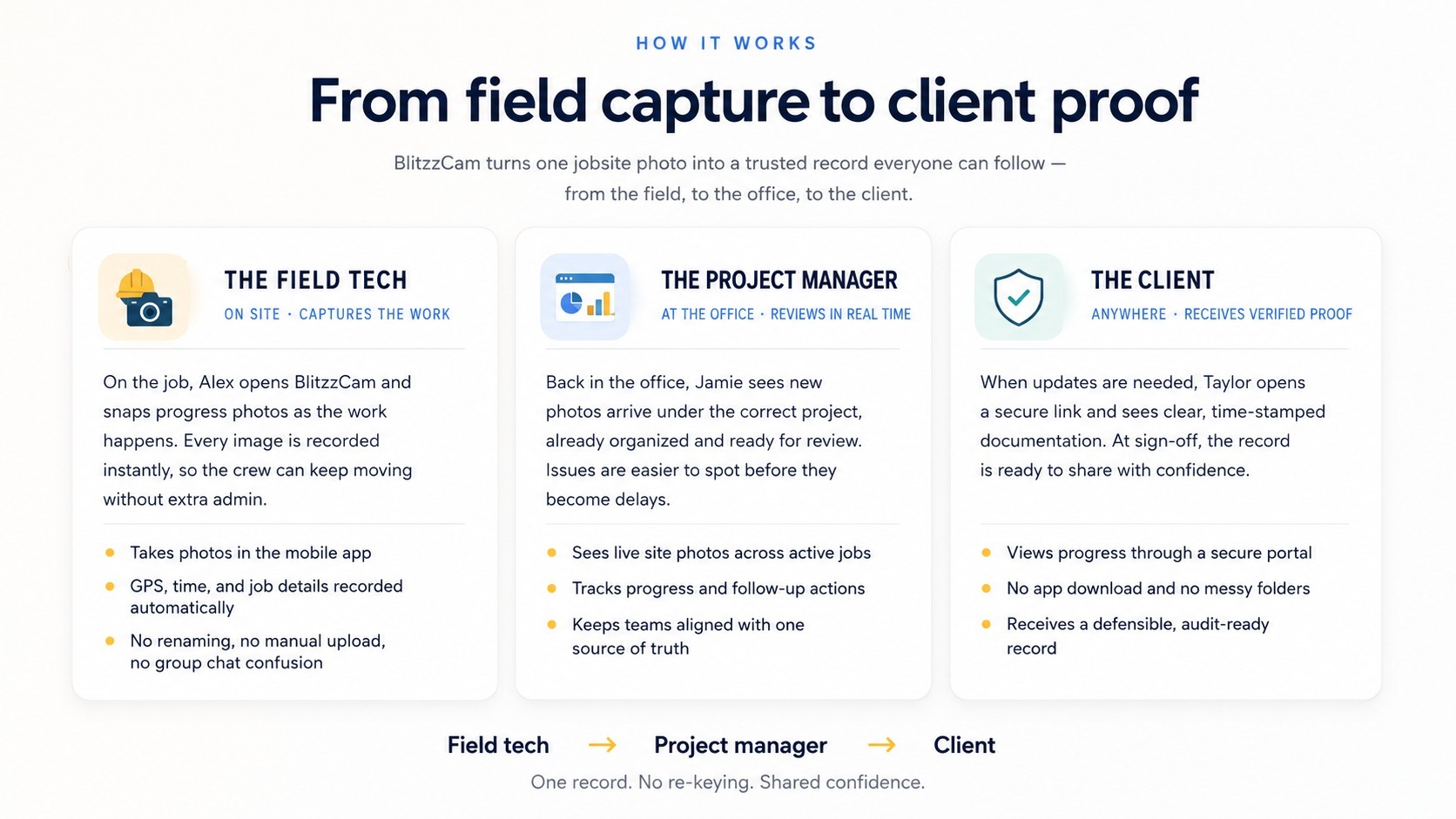
There's nothing to configure per photo. Every shot taken through the app is automatically stamped with GPS location and a timestamp, and filed under the correct project without any manual renaming or foldering. The tech's job is still just "take the photo" — the organizing happens behind the scenes.
Capture is unlimited. There's no storage cap or per-image fee to worry about, so there's no reason to under-document a job to save space or cost. If a shot might matter later, it's worth taking.
Sync happens automatically. In areas with poor signal — a basement, a rural site, a steel-heavy building — photos still capture normally and sync to the cloud automatically once the device reconnects. Crews don't need to manually trigger an upload or worry about losing work if they're offline for part of the day.
The best way to get real adoption here is the same advice that applies to any field tool: do a short, hands-on walkthrough on an actual job site rather than in an office or over a call. Have your foreman or lead tech take a handful of real photos on their own phone during the demo, not a sample project. Five minutes of hands-on practice tends to build more confidence than a much longer explanation.
Day Three: Setting Up Checklists for Your First Job Type
Once photos are flowing in, the next step is layering in checklists — the feature that turns "we took some photos" into "we documented exactly what needed to be documented, every time." Checklists define what should be captured for a specific type of work: a pre-cover inspection, a safety walkthrough, a completion sign-off, or whatever recurring task your team performs across jobs.
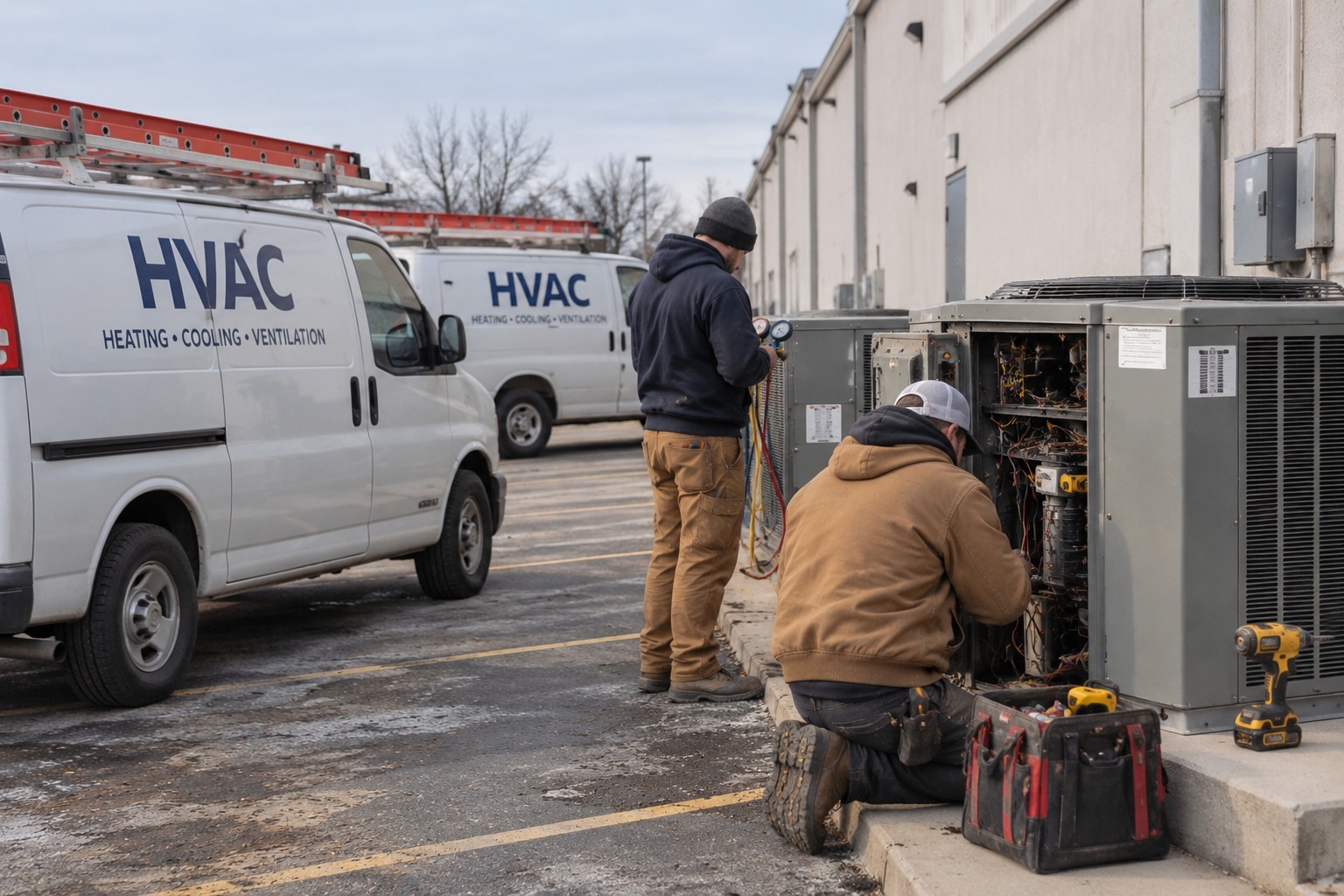
Start with just one checklist for your most common job type rather than trying to template every scenario your business handles in the first week. A roofing company might start with a "completion documentation" checklist; an HVAC company might start with "pre- and post-service unit condition." Once the first one is running smoothly and your team is comfortable with the format, expanding to additional job types is a much smaller lift.
Task assignments work alongside checklists — instead of a project manager calling around to confirm something got done, a task can be assigned directly against a job, tracked, and closed out in the same place as the photos and checklist responses that prove it happened.
Day Four: Setting Up the Office Side
While the field crew is getting comfortable capturing photos, your office team should be getting familiar with the other side of BlitzzCam: reviewing what's coming in. This is where project-based organization and instant search pay off — rather than digging through a camera roll or a shared drive, the office team can open a project and see everything filed under it automatically, already tagged and time-stamped.
This is also a good moment to assign roles and decide who has visibility into what. Not every job needs the same set of eyes, and setting up permissions early avoids a cleanup exercise later.
Day Five: Sharing Your First Client Portal Link
By the end of week one, most teams have enough documentation on a live job to share something real with a client, owner, or inspector. This is where BlitzzCam's client-facing side comes in: a permissioned portal link that gives the right person visibility into exactly the records you choose to share, without requiring them to create an account or download an app.
For a first project, this is often as simple as sending a link with the week's progress photos to a client who's been asking for updates. It's a small step, but it tends to be the moment a new tool goes from "something the office is testing" to "something that visibly changed how we communicate with clients" — and that's usually what gets a team fully bought in.
What to Expect After Week One
Once the basics are running — projects created, crew capturing photos, checklists in place for at least one job type, and the office team comfortable reviewing what comes in — the natural next steps are expanding checklists to cover more job types, connecting BlitzzCam to other tools your business already runs (through Zapier or the REST API, depending on your setup), and refining your tagging convention based on what's actually proven useful to search for.
Because BlitzzCam is in early access, your feedback during this period also directly shapes what gets built next. Teams that flag friction points or missing features in these early weeks tend to see that feedback reflected in the product sooner than it would be after a full public launch.
FAQs
How long does it take to get a team up and running on BlitzzCam?
Most of the setup — creating a project, onboarding a field crew, and getting the first checklist running — can realistically happen within the first week, since the app doesn't require field techs to change how they take photos.
Do I need to train my whole team at once?
No. Many teams start with one project and one crew, work out their tagging and checklist conventions, and then expand to additional jobs and team members once the first workflow feels solid.
What if my team has poor signal on job sites?
BlitzzCam captures normally offline and syncs automatically once the device reconnects, so field techs don't need to manage uploads manually or worry about losing documentation from a low-signal site.
Can I invite clients or inspectors during the first week?
Yes — the client portal link can be shared as soon as there's documentation worth showing. Many teams share their first portal link with a client before the end of week one.

Blitzz Team
The Blitzz Team writes about remote video support, virtual inspections and field service. Our guides come from working with home builders, property managers, warranty teams, contact centers and field service organizations that use Blitzz to see and solve issues without a truck roll.

.jpg)