
.png?width=120&height=55&name=Blitzz-Logo-right%20white%20eyes%20-%20not%20transparent%20(3).png)

On this page
If you currently have access to your IrisCX account, it’s a good time to review and secure your operational data. Many teams rely on IrisCX for critical customer records, warranty evidence, and historical service documentation, so ensuring everything is properly exported and backed up is an important part of ongoing data management.
This guide provides a clear, step-by-step IrisCX data export checklist so you can quickly secure everything important. You’ll learn exactly what to export, how to prioritise your IrisCX video backup, and how to organise your saved IrisCX customer data once it’s downloaded. The focus here is simple: practical steps to help you protect and retain your key operational information without disruption.
What to Export From IrisCX
Before you start your IrisCX data export, focus on the assets that actually protect your operations, warranty decisions, and customer history. Missing even one category can create gaps later in support, compliance, or dispute resolution.
- Video session recordings (warranty intake, inspections, support calls)
These are your core records. They document issues visually and are often used for dispute resolution, training, and warranty validation. - AI defect summaries and transcripts
These capture structured insights from sessions. They help you understand what was diagnosed and why decisions were made. - Customer contact records and session metadata
Includes names, timestamps, issue types, and case references. Essential for reconnecting conversations and maintaining continuity. - Photos and attached files from sessions
Supporting visuals often contain key proof of damage or installation issues that aren’t obvious in video alone. - Workflow definitions and intake form configurations
These show how your processes were set up, including routing rules and intake logic you may need to rebuild elsewhere. - Integration logs (Zendesk tickets, MS Teams threads, Zapier histories)
Critical for tracing how IrisCX data flowed into your support and CRM systems. Useful for rebuilding automation later. - User and team configuration (roles, routing rules)
Helps you reconstruct access control, permissions, and internal workflows if you migrate to another platform.
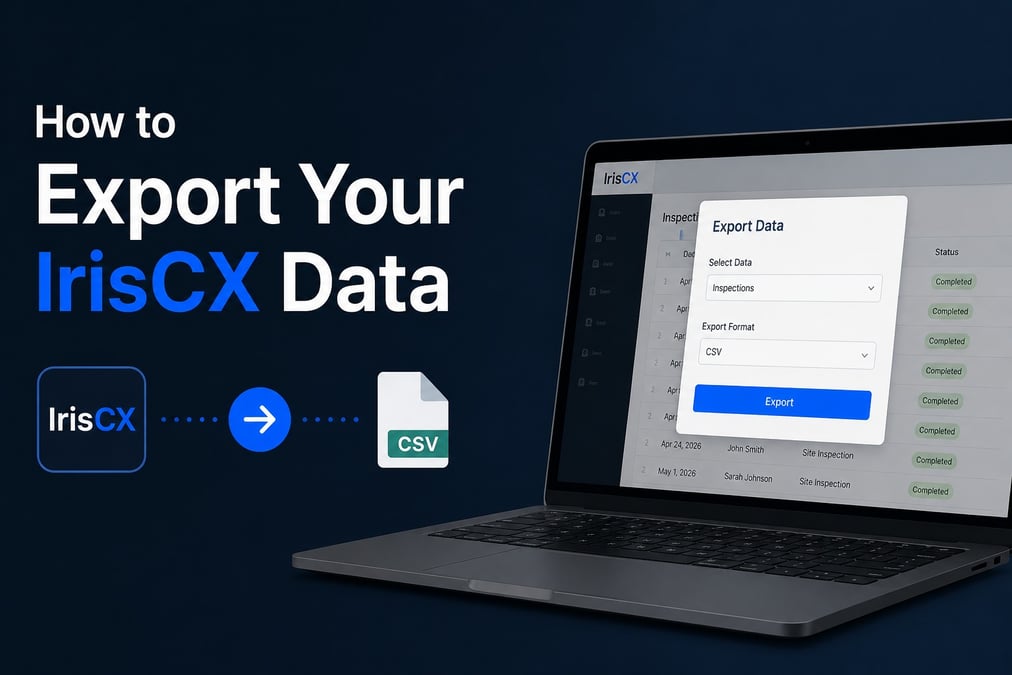
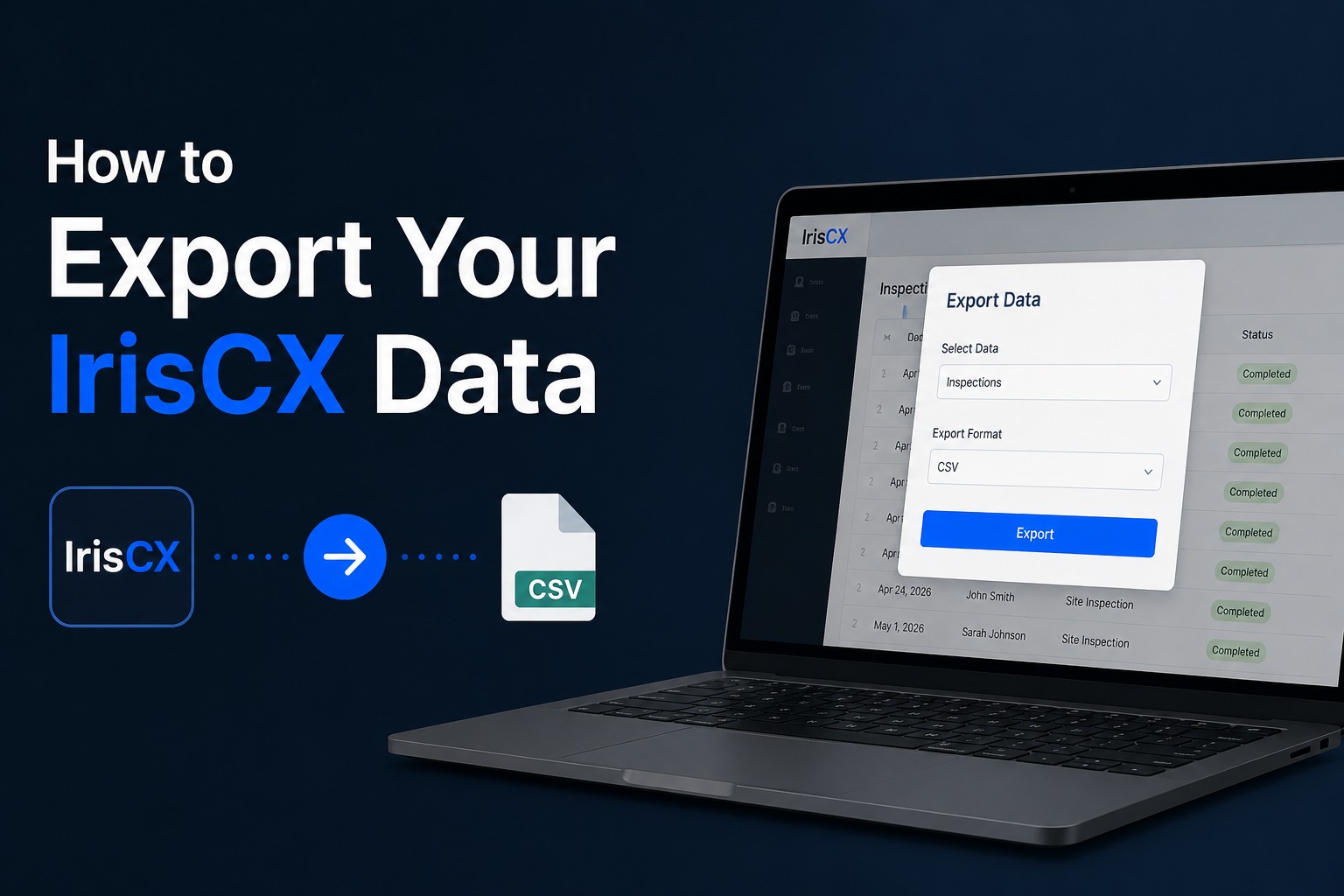
Step by Step: How to Export
- Log into your IrisCX admin console
Start by accessing your IrisCX admin account using your standard credentials. - Navigate to settings or admin tools
Look for sections such as Settings, Admin, or Data Management where export tools are typically located. - Request a full data export (if available)
If a full export option exists, use it. If not, export data by category (sessions, contacts, configurations) to avoid missing critical records. - Download recordings individually or in batch
Export all video session recordings, including inspections, warranty calls, and support sessions. Use batch download options where supported. - Export integration histories from connected tools
Pull data from systems like Zendesk ticket history, Microsoft Teams archives, and Zapier logs to preserve workflow continuity. - Organize everything into structured folders
Store exports in a clear folder structure—ideally one folder per category (videos, transcripts, contacts, integrations, etc.). - Verify file integrity
Spot-check video playback, open transcripts, and confirm key files are readable and complete before archiving.
Note: Exact UI paths may vary depending on your IrisCX configuration and version. If export tools are limited or unavailable, check current IrisCX documentation or contact their support team for the most up-to-date export process or assistance.
If Export Options Are Limited
- Contact IrisCX support directly and request a full data export package
- If bulk downloads aren’t available, export recordings individually or use browser-based downloads where possible
- As a last resort, capture critical sessions via screen recording if no download option exists
- Pull supporting records from connected systems (Zendesk, Microsoft Teams, Zapier), which often retain logs, notes, and session links
Where to Store It
- Use secure cloud storage with retention controls (Google Drive, OneDrive, AWS S3)
- Ensure files are encrypted at rest with restricted access permissions
- Keep at least one offline backup for long-term warranty, compliance, or dispute reference
What to Do With the Data Next
- Import customer contacts and case history into your replacement platform
- Use past session recordings to train support and field teams on new workflows
- Turn historical defect summaries into knowledge base articles or troubleshooting guides
A Note on Choosing What Comes Next
Exporting your IrisCX data is step one—ensuring nothing is lost. Step two is deciding where that data lives next and how your workflows evolve from here. If you’re planning that transition, it’s worth reviewing a structured migration approach alongside a comparison of available platforms.
You can start with the migration guidehere and the best IrisCX alternatives roundup. Platforms like Blitzz are often evaluated in this context for their workflow and integration capabilities, depending on operational needs.
FAQs on IrisCX Data Export
1. Can I export all my IrisCX data at once?
In some cases, IrisCX may offer a full data export option through the admin console, but this depends on your account setup and current platform configuration. If available, this is the fastest way to pull everything including recordings, transcripts, customer data, and workflow settings in one request. However, many users will only have access to section-based exports (for example, sessions, contacts, or integrations separately). If a full export is not visible, it’s best to contact IrisCX support immediately and request a complete data export package to avoid missing any critical records.
2. What is the most important data to export first?
The priority should always be your video session recordings and any associated customer case data. These typically include inspections, warranty calls, and support sessions that may not be reproducible later. After that, focus on AI-generated summaries, transcripts, and customer contact records, as these contain the structured context behind each interaction. Workflow configurations and integration logs should also be captured early because they are harder to rebuild manually once access is limited.
3. Can I still access my IrisCX recordings after export?
Yes. Once downloaded, your recordings are stored as independent video files and can be accessed using standard media players. However, they will no longer be searchable or linked to your original IrisCX dashboard unless you import them into another platform. This is why it’s important to organize them properly during export—ideally by date, customer, or case ID—so they remain usable for warranty claims, training, or dispute resolution later.
4. What if I cannot find bulk export options in IrisCX?
If bulk export is not available in your dashboard, you will need to export data manually by category or request assistance from IrisCX support. In many cases, support teams can generate backend exports that are not visible in the standard UI. As a backup, you can also download recordings individually through session history. While this is slower, it ensures no critical data is lost during transition.
5. Where should I store exported IrisCX data?
The safest approach is to store everything in a structured cloud environment such as Google Drive, OneDrive, or AWS S3 with strict access controls. You should organise folders by category—such as videos, transcripts, contacts, and integrations—to make retrieval easier later. For high-value records like warranty evidence, it’s also recommended to maintain an encrypted offline backup in case long-term access is required for compliance or legal purposes.
6. What should I do with my IrisCX data after exporting it?
Once exported, your data should be prepared for migration into a replacement system or internal archive. Customer records and case history can be imported into a new platform to maintain continuity. Video recordings are often reused for training support staff or improving inspection processes. Transcripts and defect summaries are especially valuable for building internal knowledge bases and improving future customer support workflows.
7. Do I need a replacement platform immediately after exporting?
Not immediately, but exporting data is only the first step. Without a replacement plan, your exported files become static archives rather than usable operational assets. Ideally, you should evaluate alternative platforms at the same time so you can transition workflows without disruption. Many teams compare tools like Blitzz, Streem, Help Lightning, and others depending on their use case, ensuring the new system supports both live support and structured documentation.

Blitzz Team
The Blitzz Team writes about remote video support, virtual inspections and field service. Our guides come from working with home builders, property managers, warranty teams, contact centers and field service organizations that use Blitzz to see and solve issues without a truck roll.