



On this page
Every service job starts the same way. A customer calls, the office books the visit in ServiceTitan, and a technician is assigned. From that moment, the job has a name, a number, an address, and a team. What it often lacks is a reliable photo record.
Technicians photograph the work on personal phones, text the images to dispatch, and someone in the office saves them to the right job when time allows. Some photos arrive late, some never arrive, and some end up attached to the wrong customer. When a callback or warranty question comes in months later, the evidence is spread across camera rolls and message threads.
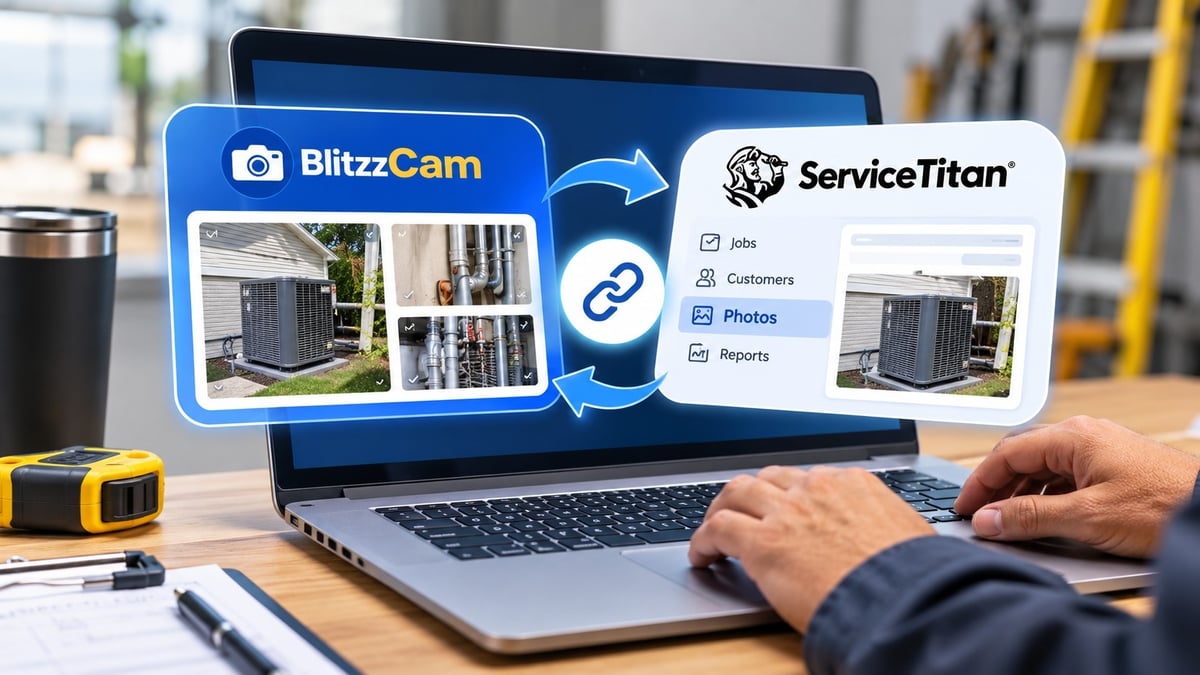
Connecting BlitzzCam to ServiceTitan fixes this at the source. A job booked in ServiceTitan becomes a BlitzzCam job automatically, the assigned technicians see it on their phones, and the photos and reports they create return to the ServiceTitan job. This guide covers how the integration works, how to prepare, how to connect, and how to roll it out to your technicians.
The Idea in One Sentence
ServiceTitan stays the system of record for the job, and BlitzzCam handles photo capture in the field. The integration passes the job and the crew from ServiceTitan to BlitzzCam, and passes photos and reports back.
Availability: the ServiceTitan integration is currently in beta. Book a demo or start a free trial and ask for early access. Details are on the ServiceTitan integration page.
A Job From Booking to Billing
The easiest way to understand the integration is to follow one job through it.
8:15 a.m. The job is booked. A customer service representative books an HVAC maintenance visit for a dental office in ServiceTitan, with the customer, location, and two technicians.
8:16 a.m. The job appears in BlitzzCam. BlitzzCam creates a matching job with the same name, number, and address.
8:16 a.m. The crew is matched. BlitzzCam matches the technicians on the appointment to BlitzzCam users by email address and assigns them.
10:30 a.m. The technicians arrive. They open the job from their Jobs list, follow the checklist, and capture photos of the condition on arrival, the equipment data plates, the work performed, and the finished system. Every photo is stamped with GPS and time.
11:45 a.m. The report is created. One technician generates a PDF report from the job’s photos, notes, and checklist results.
11:46 a.m. The records return to ServiceTitan. Photos and the report upload to the attachments on the matching ServiceTitan job.
1:00 p.m. Billing opens the job. The photos and report are already there. Nobody had to chase anything.
What Syncs and in Which Direction
| Record | Direction | When it happens |
|---|---|---|
| Job (customer, location, job number) | ServiceTitan to BlitzzCam | When the job is booked |
| Job changes (name, status) | ServiceTitan to BlitzzCam | When the job changes |
| Technicians on the appointment | ServiceTitan to BlitzzCam | When the job is booked, matched by email |
| Photos | BlitzzCam to ServiceTitan | As photos are taken |
| Reports (PDF) | BlitzzCam to ServiceTitan | When a report is created |
Completed jobs are archived in BlitzzCam, so technicians see current work rather than a growing pile of old jobs.
Why Photos on the Job Record Matter
A photo is only useful when someone can find it and trust it. Attaching photos directly to the ServiceTitan job solves the first problem, because the office, billing, and management already work in that record. BlitzzCam solves the second: every photo is stamped with GPS location and time at capture, so a reviewer can see where and when it was taken.
That combination supports several common situations:
- Callbacks. When a customer reports that a problem has returned, the team can open the original job and see the condition on arrival, the work done, and how the system was left.
- Warranty claims. Data plate photos, installation images, and final readings are on the job when a manufacturer asks for proof.
- Billing questions. Photos of replaced parts and completed work support the invoice.
- Customer updates. A report or shared link shows the customer what was done.
- Training and quality control. Managers can review sample jobs without calling a technician.
For more on why verified capture matters, read BlitzzCam vs. a Phone Camera: Why GPS and Timestamp Verification Matters.
Before You Connect: Preparation Checklist
A little preparation prevents most setup problems.
1. Choose an administrator
An admin connects BlitzzCam to your ServiceTitan account and approves access. Choose someone with the right permissions in both systems, such as an operations manager or office administrator.
2. Align technician emails
Assignment depends on email matching. BlitzzCam matches the technicians on the ServiceTitan appointment to BlitzzCam users by email address. A technician without a BlitzzCam user with the same email is not assigned.
Action: Compare the emails in ServiceTitan with your BlitzzCam user list, and invite anyone missing. Pay attention to technicians who use a personal address in one system and a company address in the other.
3. Tidy your open jobs
Open ServiceTitan jobs import into BlitzzCam when you first connect. Close or clean up stale, duplicate, or test jobs first, so technicians start with a clear list.
4. Create your checklists
Build photo checklist templates for your common job types, such as maintenance visits, installs, repairs, and inspections. Each checklist defines the photos a technician must capture before a job is complete.
5. Pick a pilot group
Start with one crew or one service line. A small group can test the flow, report issues, and help train others.
How to Connect: Four Steps
Step 1: Connect. An admin connects BlitzzCam to your ServiceTitan account and approves access.
Step 2: Import. Open ServiceTitan jobs come in as BlitzzCam jobs.
Step 3: Match. The technicians on each job are matched to BlitzzCam users by email and assigned.
Step 4: Capture. Technicians take photos in the app. Photos and reports flow back to ServiceTitan.
Because the integration is in beta, mention it in your demo or trial request so it can be enabled for your account.
What Technicians Do Differently
The integration removes setup work, and the technician’s routine becomes simple.
Open the job from the list. Assigned jobs appear automatically. Technicians should not create new jobs for work that already exists, since duplicates defeat the purpose.
Capture inside the job. Photos taken in the job’s camera are saved to the right job and stamped with GPS and time. Photos taken in the native phone camera are outside the record. The job photo guide shows how to capture photos inside a job.
Work through the checklist. A standard photo set means every job has the same baseline: arrival condition, data plates, work performed, readings, and the finished result.
Add notes by voice. With AI Walkthrough, technicians describe what they see while taking photos, and AI turns that narration into notes on the job. This reduces typing and improves notes compared with ones written from memory.
Create the report. At the end of the visit, one tap builds a PDF from the photos, notes, and checklist results and sends it to the ServiceTitan job. Reports and sharing also lets you send a branded report or a link to the customer, with no app download or login required.
Service Trades That Benefit Most
HVAC. Seasonal volume is high and callbacks are common. Photos of data plates, connections, and the system running at completion help with warranty claims and disputes. See the HVAC trade page and Top 10 Jobsite Photo Documentation Apps for HVAC in 2026.
Plumbing. Supply lines, drains, and water heater connections are concealed quickly. Photos taken before they are covered are the ones most often requested after a leak. See the plumbing trade page.
Electrical. Panels, wiring, and disconnects are difficult to verify once a job is closed up. A dated, location-verified record supports inspections and liability questions. See the electrical trade page.
Working Without a Signal
Basements, mechanical rooms, attics, and rural properties often have poor coverage. BlitzzCam lets technicians keep capturing without a connection, and photos sync automatically once the device is back in range, with the original GPS location and timestamp preserved. The photos then reach the ServiceTitan job through the integration.
For practical tips, see Top 10 Best Practices for Offline Construction Photo Documentation.
Controlling Access and Keeping Records Consistent
As more technicians use the app, consistency matters.
- Standardize checklists. Use the same templates by job type so every technician captures the same key photos.
- Control permissions. Admin controls provide roles, groups, and an activity log, so you decide who can view, edit, and share records.
- Keep records with the company. Photos stay with the job, not on a technician’s phone, so the history remains when staff change.
- Review a sample regularly. A quick weekly check of a few jobs shows whether the standard is being followed.
Common Setup Questions and Fixes
A technician cannot see an assigned job.
Check that their BlitzzCam email matches their ServiceTitan email and that they are assigned to the appointment.
Someone on the ServiceTitan job is not assigned.
They are probably not a BlitzzCam user yet. Add them with the same email to bring them onto the job.
Old or duplicate jobs appear after import.
Open jobs import when you first connect. Clean up stale jobs in ServiceTitan before connecting.
Photos are missing from the ServiceTitan job.
Confirm the photos were taken inside the BlitzzCam job and that the device has finished syncing.
A job status looks out of date.
Name and status changes update the BlitzzCam job, and closed jobs are archived. Check that the change was made on the matching ServiceTitan record.
Frequently Asked Questions
What happens when I book a job in ServiceTitan?
BlitzzCam creates a matching job with the same name, number, and address, and assigns the matching technicians.
How does BlitzzCam choose who to assign?
It matches the technicians on the appointment to BlitzzCam users by email.
Where do photos and reports go?
Both upload to the attachments on the matching ServiceTitan job. Reports arrive as PDFs.
What about jobs I already have?
Open ServiceTitan jobs import as BlitzzCam jobs when you first connect.
Is the integration available now?
It is in beta. Book a demo to request early access.
How much does BlitzzCam cost?
BlitzzCam offers a free 14-day trial. Monthly plans are $49.99 per month with three users included, plus $14.99 per month for each additional user. Annual plans are $39.99 per month with three users included, plus $11.99 per month for each additional user, billed annually. See the pricing page for current details.
Start Small, Then Scale
The simplest rollout is a small pilot: one crew, matched emails, a clean list of open jobs, and a few well-built checklists. Within a few days you will see jobs appear on phones, photos and reports arrive in ServiceTitan, and where the process needs adjusting. Then bring in the rest of the company.
The result is a documentation process with no retyping, no emailed photos, and no lost records, and a ServiceTitan job that holds proof of the work done.
Start your free BlitzzCam trial or book a demo to request early access to the ServiceTitan integration.

Blitzz Team
The Blitzz Team writes about remote video support, virtual inspections and field service. Our guides come from working with home builders, property managers, warranty teams, contact centers and field service organizations that use Blitzz to see and solve issues without a truck roll.