.png?width=120&height=55&name=Blitzz-Logo-right%20white%20eyes%20-%20not%20transparent%20(3).png)

On this page
Photo documentation that survives a dead zone starts before the crew leaves the yard. Every job gets set up as a project in a photo app ahead of time, so each picture has a place to land the moment it is taken, with or without a signal.
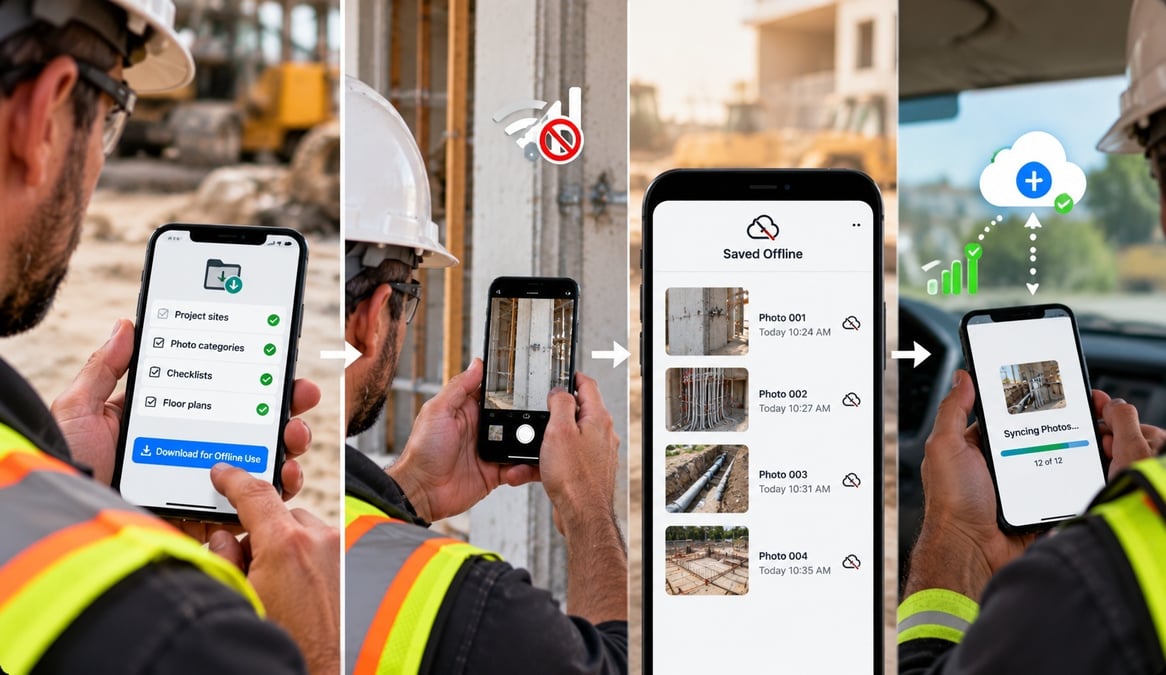
Offline capture works in two steps. The app saves each photo on the device and locks in the GPS location and timestamp at the instant of the shot. Then, as soon as the phone finds a connection, it uploads the whole queue in the background. The office watches photos appear in the project without anyone texting files or doing an end-of-day upload.
Getting there takes four decisions:
- Choose an app built around projects, not the native camera.
- Create projects before the crew arrives.
- Give crews a short standard for what to photograph.
- Train them on the few steps that matter.
The rest of this guide walks through each one, explains what happens behind the scenes when the signal drops and returns, and shows where BlitzzCam fits.
-1.jpg?width=1312&height=1199&name=Untitled%20(61)-1.jpg)
Why photos get lost on remote job sites
When photos go missing from a remote job, the cause is almost always the workflow, not the signal. A crew member shoots with the phone's built-in camera in a spot with no service. The image lands in a personal camera roll with no job attached, and it never reaches the office. The dead zone didn't lose the photo. The process did.
Certain conditions break any connection-dependent workflow. Basements, crawlspaces, rural properties, and the steel-and-concrete cores of large commercial buildings can all block cell service. If your tool needs a connection to save or upload, every one of those phases leaves a hole in the record. A tool that saves locally and uploads on its own once the signal returns makes the dead zone irrelevant.
The trouble is that the gap stays invisible until it costs you:
- Nobody notices missing photos during the job, because the work gets done and everyone moves on.
- The hole appears months later in a dispute, a warranty claim, or an insurance review, when you need proof that the in-wall plumbing was correct before the drywall went up.
- By then the photo is stuck on a phone that left the company, or buried in a text thread nobody can find.

Choose a project-based app, not the native camera
The built-in phone camera is where most offline documentation falls apart. It takes a photo with no job context, no consistent location data, and no way for the office to see it. Whatever happens next depends entirely on the person holding the phone remembering to sort and share.
A purpose-built photo app changes the starting point. Each photo is tied to a project automatically and carries location and time data from the moment of capture. That is the foundation every later step depends on, so it is worth checking a few things before you commit to a tool:
- Does it save photos locally when there is no signal, rather than failing or asking you to retry?
- Does it record GPS and timestamp at capture rather than at upload?
- Does it upload automatically when the phone reconnects, with no manual step?
- Does it organize photos by project so the office can find them without asking?
If the answer to any of these is no, the gap you are trying to close will reopen the first time a crew works in a basement. Get the app right and the remaining steps are simple. Skip this step and you end up with the same scattered camera rolls you were trying to escape.
Create projects before the crew leaves the yard
Set up each project in the app before the crew arrives on site. A photo needs a home before the signal drops, not after. When the project already exists on the device, every picture files under the right job from the first shot of the day, whether the crew is in a basement or on a rural lot with zero connectivity.
The alternative is the "I'll sort these later" habit, and later rarely comes. A crew shoots dozens of photos across three jobs, the images blur together, and by the time anyone tries to organize them the context is gone. Nobody remembers whether that shot of the water heater belonged to the Elm Street job or the one on Fourth.
Pre-creating projects takes that decision out of the field entirely. The crew opens the app, the right job is waiting, and the filing happens automatically while they focus on the install. For the office, it also means a single habit to enforce: projects exist before work begins. Whoever schedules the job, whether a dispatcher or a project manager, creates the project at the same time.
If your team works several jobs in a day, do a quick check at the start of the shift. Confirm each crew has the day's projects on their device before they head into areas with spotty coverage.
Train crews on three steps, not thirty
The whole day-one lesson fits in a sentence: open the app, pick the project, take the photo. Keeping it that short is what gets crews to use the tool instead of drifting back to their camera roll.
The instinct to demonstrate every feature usually backfires. A crew that sits through a half-hour tour of tags, annotations, reports, and galleries remembers almost none of it and reverts to the native camera by lunch. A better sequence looks like this:
- Start with mobile capture and basic tagging. That alone produces value right away.
- Add annotations, filtering, and checklists once the core habit has stuck, usually within the first week or two.
- Prove it on one crew first. Early wins build the momentum to roll the same setup out to the rest of the company.
It also helps to explain the reason behind the habit, not just the steps. Crews adopt a tool faster when they understand it protects them: a photo taken in the app is proof that their work was done correctly and on time. That makes the extra few seconds feel like insurance rather than paperwork.
Finally, pick a point person on each crew. When a new hire has a question at 7 a.m. on a job site, someone nearby should be able to answer it without a phone call to the office.
Write a short photo SOP so crews know what to capture
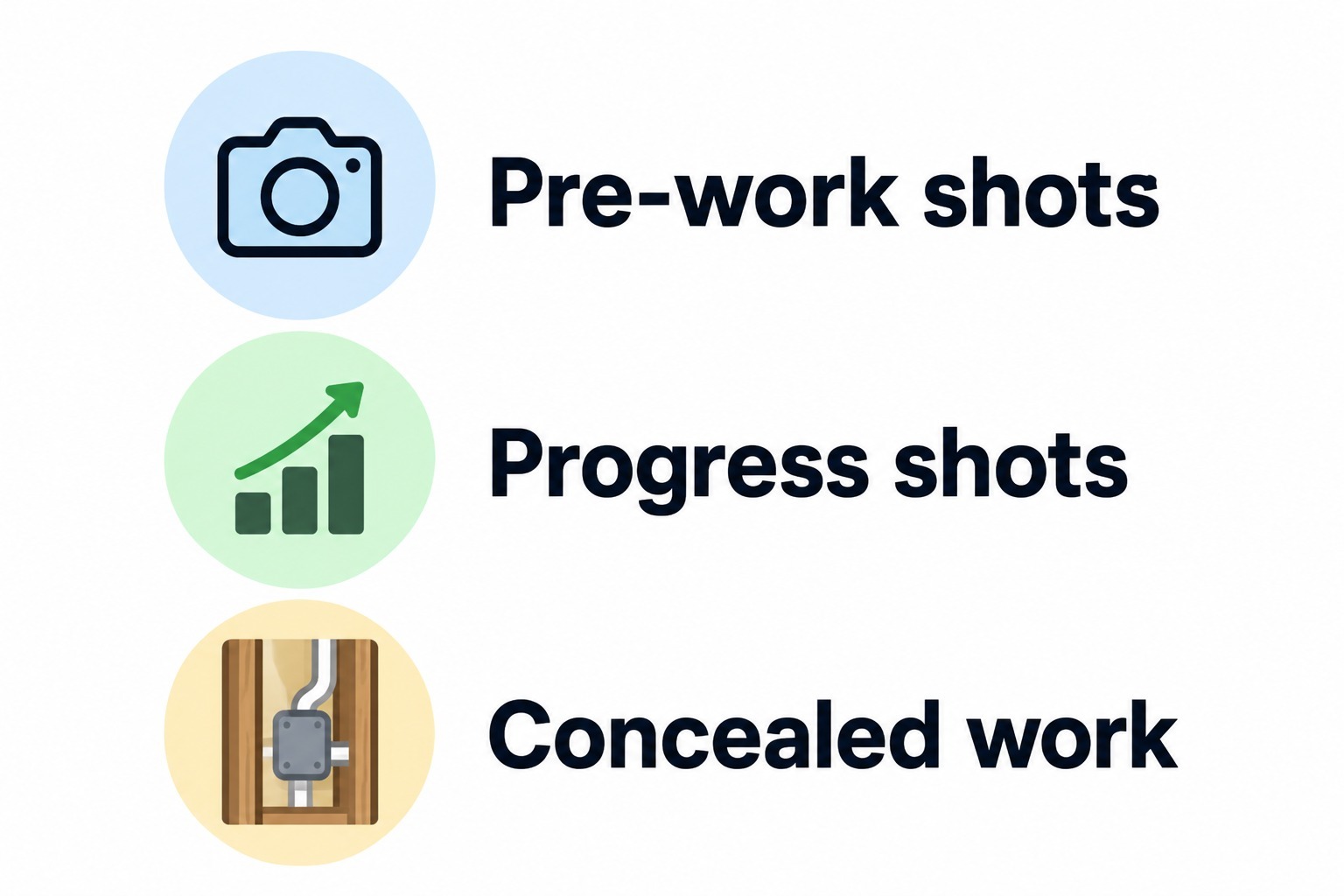
A short standard operating procedure tells crews what to photograph without anyone having to ask. Three categories cover almost every job.
Pre-work shots. Document existing conditions and any damage before anyone touches the site. These protect you against false damage claims later, because the record shows what was there on arrival.
Progress shots. Capture milestones such as framing, foundation, and rough-ins from consistent angles. Taking the same view each time makes it easy to compare stages and to show a client how far along the work is.
Concealed work. This is the non-negotiable category. Photograph in-wall plumbing, electrical, and HVAC before the drywall goes up, and under-slab utilities before the pour. Once that work is covered, nobody can inspect it again, so the photo is the only record that survives.
Frame the SOP as a documentation standard, not a checklist burden. A simple rule works well: at each milestone, take one wide shot for context, one medium shot for the work area, and one close-up for the detail that matters. A crew that follows that pattern builds a complete record on its own, and you don't have to review every job to find out whether something was missed.
Keep the document to a single page. If it takes longer than a minute to read, crews will not read it. You can add trade-specific items later, for example moisture readings for restoration work or panel labels for electrical, once the baseline habit is solid.
What happens when there is no signal
When a crew loses signal, a well-built app should keep working as if nothing changed. Photos save to the device, and the app records the GPS coordinates and timestamp at the moment of capture, not at the moment of upload. That distinction decides whether your documentation holds up.
Consider a basement photo taken at 9:14 a.m. If the app stamps the time at capture, the record reads 9:14 a.m. and the correct address, even if the phone doesn't reconnect for three hours. Those values should not change after the fact when the phone comes back online.
An app that waits for connectivity to attach metadata tells the wrong story. The location reads wherever the crew happened to regain signal, and the timestamp logs the upload time instead of the work time. For an insurance claim or a payment dispute, inaccurate metadata is nearly as unhelpful as no photo at all.
Crews also worry about a simpler question: did the photo actually save? Look for an app that answers it clearly, such as a visible count of items waiting to upload. That lets a technician keep shooting in a crawlspace and see the number climb, instead of wondering whether the last twenty shots vanished.
Project organization should hold up offline as well, which is why pre-creating projects matters so much. When a crew member selects the job before heading into a dead zone, every photo files under that project on the device. The records build correctly while the phone is offline, and the work appears in the right place the moment it reconnects. There are no loose photos and no guessing later about which house a picture came from.
-1.jpg?width=1536&height=1024&name=Untitled%20(56)-1.jpg)
How auto-sync works when connectivity returns
The moment a crew truck rolls back into signal range, the app should start pushing the photo queue to the cloud on its own. Nobody taps an upload button or texts a file. The photos captured in that dead basement show up in the project, filed under the right job, with location and time already locked from the moment of capture.
For the crew, this means the work is finished the second they put the phone away. They don't owe anyone an end-of-day upload, and they don't have to remember which photos belong where. The record fills in as the connection returns.
For the office, the payoff is visibility that arrives without anyone asking for it. A project manager can check progress on three job sites from a desk without calling a single foreman. A foreman in the field can see what the office flagged without a phone call back. Items that would have been missed get caught earlier because more people can see the same record.
When you run several crews across several sites, each truck's queued photos should sync into the same organized project structure as it reconnects. The condition is the same one as before: each crew needs its jobs created or loaded on the device before heading into a dead zone. Do that, and the office sees one clean record building in real time rather than a pile of texts to sort through later.
How BlitzzCam fits into an offline photo workflow
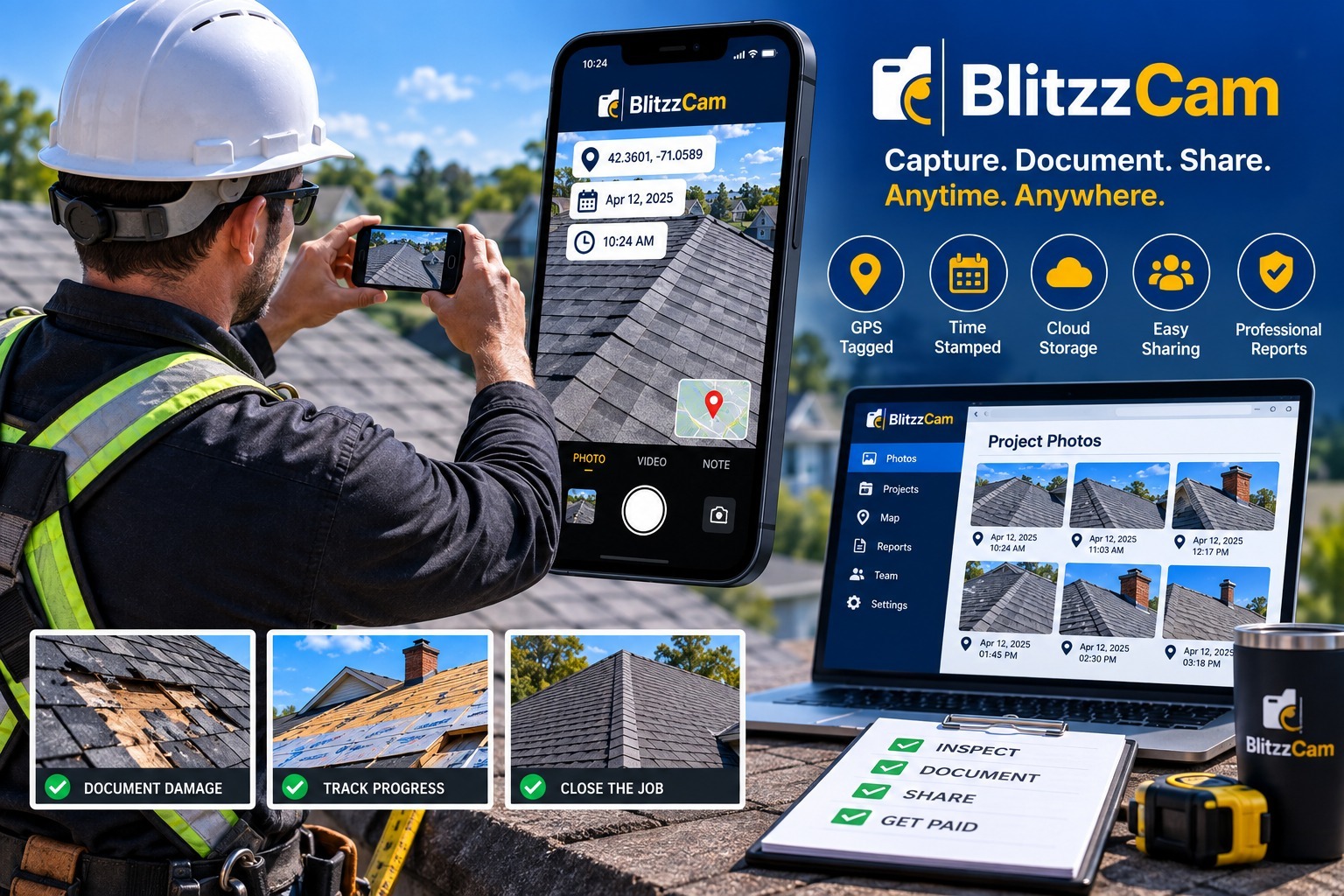
BlitzzCam is a field photo documentation platform from Blitzz, the team behind remote video support for field-to-office workflows. It is built around the same principles this guide has covered: every photo has a project, every photo is verified, and nobody has to do extra work after the shot.
Capture that matches how crews already work. Crews shoot photos the way they always have in the mobile app, available on iOS and Android. BlitzzCam handles upload and storage in the background, and captures sync automatically as soon as the device is back in range. There is no manual upload step to forget.
Verified at the moment of capture. Every photo is stamped with GPS location and a timestamp when it is shot, so context isn't lost between the job site and the office. That is the detail that keeps a basement photo credible in a dispute or an audit.
Organized by project from the start. Photos live under the right job and phase, and custom tags keep them easy to find. The office can search by project, tag, and date instead of scrolling through camera rolls or group chats.
No caps on how much you document. Capture is unlimited and high resolution, with no storage limits or per-image fees, so crews can photograph concealed work generously without thinking about cost.
Sharing without extra steps. Office staff, clients, and inspectors can see the records they've been granted through a permissioned client portal, with no app download required. When a report is needed, BlitzzCam generates a branded PDF from a project's photos and checklists.
If you want to build the workflow described above with a tool designed for it, BlitzzCam is currently in early access with a limited first cohort. Early members lock in launch pricing and help shape the roadmap. You can join the waitlist here.
FAQ
Are photos saved to my phone if there is no internet connection?
They should be. A well-built field photo app stores each shot locally, with the GPS location and timestamp recorded at capture rather than upload. Location is recorded as long as location permissions are granted. The photo waits in a queue on the device until the phone reconnects.
Do I have to tap anything when I get back in range?
Not in a properly designed workflow. The app watches for a connection and uploads the queue automatically once WiFi or cell service returns. As a habit, keep the app open or in your recent apps after returning to a signal area so the sync can finish before you close it.
Does offline capture work on both iOS and Android?
It depends on the app, so confirm before you roll it out. BlitzzCam's mobile app is available on both iOS and Android, so crews on mixed devices can follow the same process.
What if a crew member forgets to select the project before going offline?
It is fixable. Most project-based apps let you move photos to the correct job after they sync, and some let you create a new project while offline. Picking the project before the signal drops is still the cleaner habit, which is why creating projects ahead of time and checking each crew's list at the start of a shift is worth the effort.
How does the office know when new photos have arrived?
Photos appear in the project as soon as they upload, so the office sees field work without anyone texting files around. Project managers can review progress from any device and catch missing items early.
A record your office can rely on
When crews document work the way you have set it up, the office stops chasing photos. Progress on several sites is visible from one screen. The complete record builds itself as the crew works, and every photo lands under the right project with its location and time locked at capture.
That holds across every crew that follows the same app and the same one-page SOP. When a dispute or insurance review arrives months later, you pull the proof in seconds instead of digging through text threads. The same organized record feeds your client reports, your concealed-work documentation, and your defense against false damage claims.
The workflow lasts for one reason: nobody has to remember to do anything after the photo is taken. The crew opens the app, picks the project, and shoots. Everything else runs on its own.

Blitzz Team
The Blitzz Team writes about remote video support, virtual inspections and field service. Our guides come from working with home builders, property managers, warranty teams, contact centers and field service organizations that use Blitzz to see and solve issues without a truck roll.
.jpg)