


On this page
Most contractors already run their business in a CRM, field service platform, or project management system. Jobs are booked there, crews are scheduled there, and customers are managed there. The problem starts when a crew arrives on site. Photos go into a phone, someone retypes the job into a second app, and reports get emailed back to the office to be attached by hand.
Every handoff is a chance for a job to be misnamed, a photo to be lost, or a report to never reach the customer record. Connecting your photo documentation app to your CRM removes those handoffs. The job is created once, in the system you already trust, and the photos and reports return to it automatically.
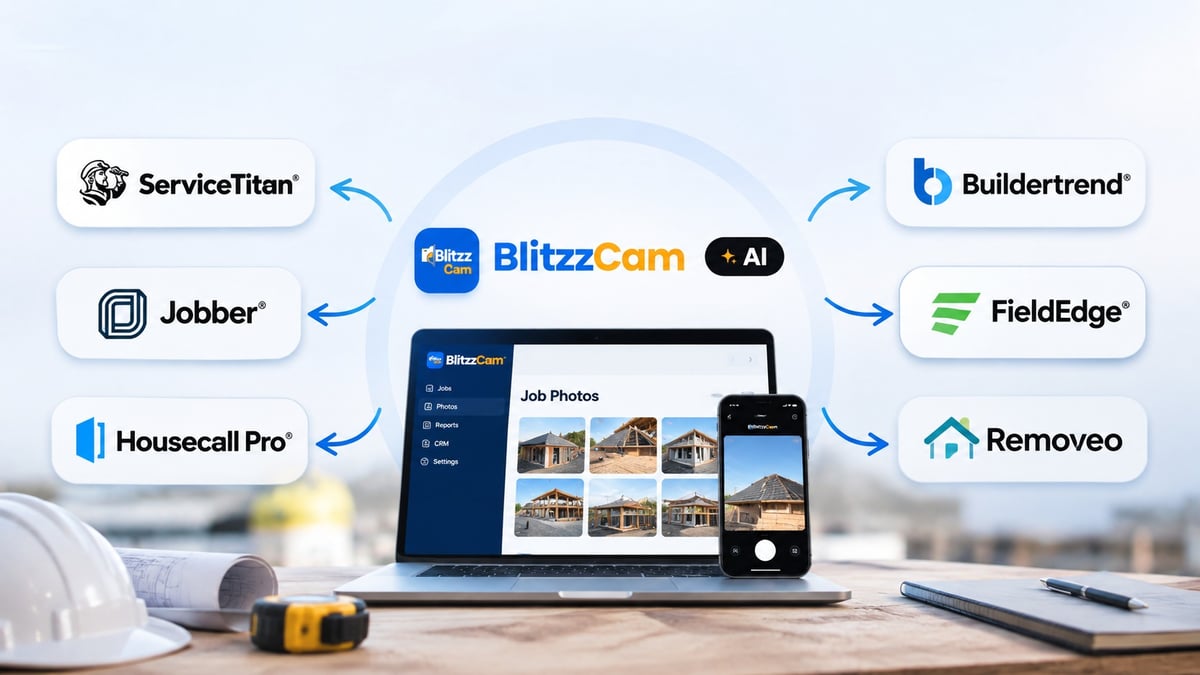
This guide explains how BlitzzCam connects to field service, roofing, and construction management tools, what to prepare before you connect, and how to get your crews working in the new flow without disruption.
What a CRM Integration Should Do
A useful integration does more than share data. It removes steps from the field workflow. For job photo documentation, that means four things:
- Jobs flow in automatically. A job created in your CRM appears in the documentation app with the same name, number, and address.
- The right crew is assigned. The people on the job in your CRM are matched to app users, so technicians see their jobs without manual setup.
- Photos and reports flow back. Field photos and PDF reports attach to the matching job in your CRM, where the office, customers, and billing staff already look.
- Changes stay in sync. Renamed jobs and status changes carry over, and finished jobs are archived.
BlitzzCam is built around this pattern. Your CRM stays the system of record for the job, and BlitzzCam handles capture in the field, with every photo stamped with GPS and time. For background on what verified capture adds, see BlitzzCam vs. a Phone Camera: Why GPS and Timestamp Verification Matters.
Which Tools BlitzzCam Connects To
BlitzzCam currently lists integrations across three categories:
Construction management
- Procore: projects in, photos and reports out
Field service
- ServiceTitan: booked jobs become BlitzzCam jobs
- Jobber: jobs and crews come in automatically
- Housecall Pro: scheduled jobs sync to BlitzzCam
Roofing CRM
Availability varies by tool. At the time of writing, ServiceTitan, Housecall Pro, JobNimbus, and AccuLynx are marked as beta, and Jobber and Procore are listed without a beta label. Check the integrations page for current status before you plan a rollout.
How the Data Flows
The ServiceTitan and Jobber pages describe the same six-step flow, and the other integrations follow a similar pattern.
- The job is booked. Your office creates the job in the CRM with the customer, location, and team.
- A matching job is created. BlitzzCam builds a job with the same name, number, and address.
- The team is matched. People on the CRM job are matched to BlitzzCam users by email address.
- The crew is assigned. Matched users see the job in their Jobs list on their phone.
- The work is captured. Crews take photos, complete checklists, and add notes, all stamped with GPS and time.
- Records return to the CRM. Photos and PDF reports attach to the matching job. In ServiceTitan they land in the job’s attachments, and in Jobber they land in the job’s notes.
Nobody retypes a job, and nobody emails photos to the office.
Before You Connect: A Preparation Checklist
A few minutes of preparation prevents most setup problems.
1. Decide who will be the admin
An administrator connects BlitzzCam to your CRM account and approves access. Choose someone who has the right permissions in both systems.
2. Make sure your team has BlitzzCam accounts
Assignment depends on email matching. A technician on a CRM job is only assigned to the BlitzzCam job if a BlitzzCam user exists with the same email address. Anyone without a matching user is not assigned.
Action: Compare the email addresses in your CRM to your BlitzzCam user list, and invite anyone who is missing. If your CRM uses personal addresses for some staff and company addresses for others, standardize them first.
3. Clean up your open jobs
When you first connect, open jobs in your CRM are imported into BlitzzCam. This is the moment to archive old, duplicate, or test jobs so your crews do not see clutter on day one.
4. Standardize job names and numbers
The BlitzzCam job uses the same name, number, and address as the CRM job. A consistent naming convention makes jobs easier to find in the field. Decide on a format, for example customer name plus site address, before the import.
5. Build your checklists
Create photo checklist templates for each job type, such as installs, maintenance visits, inspections, and closeouts. Crews should open a job and already know what to capture.
6. Plan the rollout
Start with one crew or one job type, then expand. This gives you a controlled pilot and a group of early users who can help train others.
How to Connect: The Four Steps
The setup is the same across the integration pages.
Step 1: Connect. An admin connects BlitzzCam to your CRM account and approves access.
Step 2: Import. Open jobs in the CRM come into BlitzzCam as jobs.
Step 3: Match. The people on each job are matched to BlitzzCam users by email and assigned.
Step 4: Capture. Crews take photos in the app. Photos and reports flow back to the CRM.
Because some integrations are in beta, the ServiceTitan page recommends booking a demo for early access. You can book a demo or start a free trial to get set up.
Integration by Integration
ServiceTitan
When a job is booked in ServiceTitan, BlitzzCam creates the job, matches the assigned technicians by email, and assigns them. Photos upload to the attachments on the matching ServiceTitan job, and reports upload there as PDFs. Job name and status changes update the BlitzzCam job, and closed jobs are archived. This integration is in beta, so book a demo to request access.
Best for: HVAC, plumbing, electrical, and other service trades that dispatch from ServiceTitan.
Jobber
When a job is created in Jobber, BlitzzCam builds the matching job and assigns the team by email. Photos and reports attach to the notes on the Jobber job. Jobs you already have in Jobber import when you first connect.
Best for: Small and mid-size service businesses that schedule and invoice through Jobber.
Housecall Pro
Scheduled jobs in Housecall Pro sync to BlitzzCam, so crews see their assigned work without double entry. This integration is listed as beta.
Best for: Home service companies that dispatch from Housecall Pro.
JobNimbus and AccuLynx
Both integrations are built for roofing and exterior contractors. Jobs come in from the CRM, and photos and reports land on the job record. Both are listed as beta. Roofers can also review the roofing trade page for how crews use BlitzzCam on roof jobs.
Best for: Roofing, siding, and exterior contractors who manage leads, estimates, and production in JobNimbus or AccuLynx.
Procore
BlitzzCam’s Procore integration is described as projects in, photos and reports out. It suits general contractors who manage projects in Procore and want field photos and reports to return to the project record. See the general contractors trade page for how BlitzzCam fits large project teams.
Best for: General contractors and construction managers who run projects in Procore.
What Syncs and in Which Direction
| Record | Direction | When |
|---|---|---|
| Jobs (name, number, address) | CRM to BlitzzCam | When a job is created or booked |
| Job changes (name, status, appointments) | CRM to BlitzzCam | When the job changes |
| Team assignments | CRM to BlitzzCam | When the job is created, matched by email |
| Photos | BlitzzCam to CRM | As photos are taken |
| Reports (PDF) | BlitzzCam to CRM | When a report is created |
The pattern is consistent: your CRM sends the job and the crew, and BlitzzCam sends back the proof.
Getting Your Crews Working in the New Flow
The integration removes admin work, but crews still need a clear process.
Tell crews what changes. Their jobs now appear in the app automatically, so they should open the job from their Jobs list rather than creating a new one. Duplicate jobs defeat the purpose of the integration.
Capture inside the job. Photos taken in the job’s camera are saved to the right job and sync back to the CRM. Photos taken in the native phone camera are not part of the record. The job photo guide explains how crews capture photos inside a job.
Use checklists on every job. A required photo set means every job has the same baseline record, which helps at closeout and during disputes.
Add notes by voice. With AI Walkthrough, crews describe what they see as they take photos, and AI turns that into notes on the job. The notes and photos then flow into reports.
Check the sync at the end of the day. A quick look at the CRM job confirms that photos and reports arrived.
Offline Work and Sync
Crews do not always have signal. BlitzzCam lets crews keep shooting with no connection, and photos sync automatically once the device is back in range, with the original GPS location and timestamp intact. Photos then flow back to the CRM job through the integration. For practical tips, read How to Document Job Sites With No Signal.
Common Setup Problems and Fixes
A technician does not see the job.
Check that their BlitzzCam account uses the same email address as their CRM profile, and that they were assigned to the CRM job. Add or correct the email if needed.
Someone is on the CRM job but not on the BlitzzCam job.
They are probably not a BlitzzCam user yet. Add them with the same email as their CRM record to bring them onto the job.
Duplicate or outdated jobs appear after import.
Open jobs import when you first connect. Archive old and test jobs in the CRM before connecting.
Photos are not showing in the CRM.
Confirm that the photos were taken inside the job in BlitzzCam, not in the phone’s native camera, and that the device has finished syncing.
The integration you need is in beta.
Book a demo to confirm availability and request early access for your team.
What If Your Tool Is Not on the List?
BlitzzCam also lists Zapier and a REST API for teams that need custom workflows, and describes a public API for building your own integration. If your CRM is not on the list, book a demo to talk through what is possible for your setup.
Why Connect Your CRM to BlitzzCam
The case for integration comes down to a few practical gains:
- No double entry. Jobs are set up once, in your CRM.
- Automatic crew assignment. Technicians are matched by email, with no manual setup.
- Photos where the office looks. Field photos attach to the job record in your CRM.
- Reports on the job. Checklist and photo reports are filed automatically.
- Verified records. Every photo is stamped with GPS and time at capture.
- A company-owned record. Photos stay with the job, not on personal phones.
For larger teams, admin controls add roles, groups, and an activity log, so you can decide who sees and edits records as your team grows.
Frequently Asked Questions
Does BlitzzCam replace my CRM?
No. Your CRM remains the system of record for the job. BlitzzCam handles photo capture, checklists, and reports in the field.
How are crews assigned to jobs?
BlitzzCam matches the assigned team members on the CRM job to BlitzzCam users by email address and assigns each match to the job.
What happens to jobs I already have?
Open jobs import into BlitzzCam when you first connect.
What happens when a job is closed in the CRM?
Closed jobs are archived in BlitzzCam, and job name and status changes carry over.
How much does BlitzzCam cost?
BlitzzCam offers a free 14-day trial. Monthly plans are $49.99 per month with three users included, plus $14.99 per month for each additional user. Annual plans are $39.99 per month with three users included, plus $11.99 per month for each additional user, billed annually. See the pricing page for current details.
Connect Once, Document Everywhere
A good integration disappears into the workflow. Your office books the job, your crew opens it on their phone, the photos are captured with proof of where and when, and everything returns to the record you already use.
Start with a small pilot, make sure your team emails match, and expand once the first crew is comfortable. The result is a field documentation process with no retyping, no emailed photos, and no lost records.
Start your free BlitzzCam trial or book a demo to connect your CRM and see jobs flow in automatically.
Related reading

Blitzz Team
The Blitzz Team writes about remote video support, virtual inspections and field service. Our guides come from working with home builders, property managers, warranty teams, contact centers and field service organizations that use Blitzz to see and solve issues without a truck roll.