


On this page
Last updated: November 2, 2026
When a customer cannot explain a problem clearly, voice-only support can stall. A browser link, a live camera view, and simple on-screen guidance make the next step easier to see.
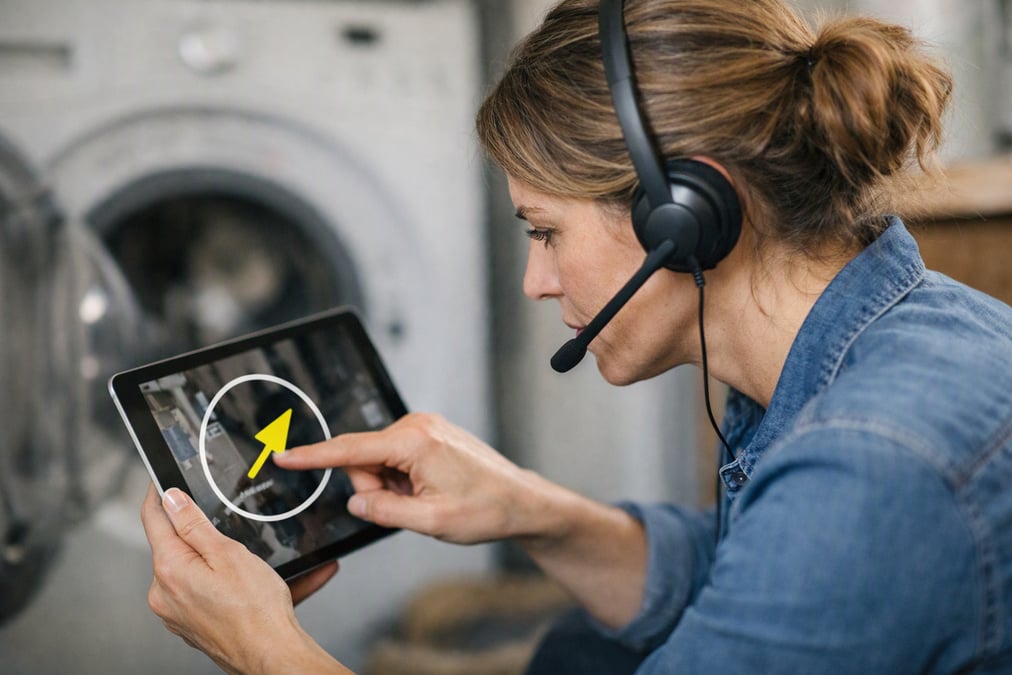
Contact center agents seeing what a customer sees, with a live pointer and markup and no app download means the agent starts a session from the ticket or call, sends one link by SMS, email, or WhatsApp, and the customer opens live video in a smartphone browser. The agent then points, marks up, zooms, and keeps the case moving without asking for an app.
- Start from the record the agent already has open.
- Send one link and keep the customer in the browser.
- Use a live pointer, markup, and zoom on the issue.
- Capture timestamped images and read serial numbers with OCR.
- Keep evidence and notes tied to the session.
Why do contact center agents seeing what a customer sees help when words are not enough?
Contact center agents seeing what a customer sees helps because some problems are easier to show than describe. A loose cable, a blinking light, a cracked part, or a small label can waste time if the agent only hears about it.
Once the agent can see the issue, the conversation gets specific. That matters for setup help, hardware checks, order issues, and escalation cases where the next step depends on what is on site.
For a related look at live support on the service side, see Live Visual Support Communication for Customer Service. For a broader market view of tools, Best No-Download Video Support Tools for Contact Centers (2026) is a useful companion.
How do contact center agents seeing what a customer sees work?
It works in a short sequence. The agent sends a link by SMS, email, or WhatsApp, and the customer opens it in a browser on a smartphone. No app download is needed.
From there, the agent sees through the customer’s phone camera from one link. The agent can point, draw markup, zoom in, and ask the customer to move closer to the issue.
What happens step by step?
- The agent starts a video session from the record, ticket, or call already in progress.
- The agent sends a link by SMS, email, or WhatsApp.
- The customer opens the link in a browser.
- The agent uses live video, a live pointer, markup, and zoom.
- The agent captures photos, notes time, and reads serial numbers with OCR when needed.
This keeps the customer task simple. It also keeps the support flow close to the work already being done in the CRM or service desk.
How do live pointer and markup guide the customer in real time?
Live pointer and markup make the guidance obvious. The agent can point to one cable, one button, one corner of a device, or one error code. Markup lets the agent highlight the exact spot that matters.
That cuts down on back-and-forth. The customer does not have to interpret long instructions, and the agent does not have to guess.
If the issue is on a shared web or app session, a related option is How Support Agents Can See a Customer's Phone Screen Without Installing an App. For teams comparing broader support setups, The Easiest Call Center Software to Connect with Customers is also relevant.
What does no app download change for the customer?
No app download removes a common delay. The customer does not have to search an app store, create another login, or wait for an install before help begins.
That matters when the case is urgent or time-sensitive. The faster the customer joins, the faster the agent can identify the issue and close the loop.
| Support method | What the customer does | What often slows it down |
|---|---|---|
| Voice only | Describes the issue in words | Visual details are hard to explain |
| App-based video help | Downloads and opens an app | Extra steps before support starts |
| Browser-based live video | Taps a link and starts in the browser | Less friction before the session begins |
For teams that want a wider view of no-download support, Best Live Video Support Software Without an App provides another helpful comparison.
How do contact center agents seeing what a customer sees fit into existing systems?
It fits into the workflow because agents can start sessions from the record, ticket, or call they already have open. That keeps the handoff simple and avoids moving between tools.
Blitzz works inside the CRM and integrates with Salesforce, Genesys Cloud CX, Zendesk, ServiceNow, Microsoft Dynamics 365, NICE CXone, and HubSpot. That matters when leaders want live help without leaving the system agents already use.
Blitzz offers five products: Concierge, Inspect, Co-Browse, ScreenShare, and BlitzzCam. Concierge is live video support with Owlbert AI built in. Co-Browse lets agents see and guide a customer’s web or app session in real time, and ScreenShare lets customers share their screen from any browser in one click.
For Salesforce workflows, see Ways Contact Centers Can Improve Service in 2026. It shows where this kind of help fits in service operations.
Which product fits which kind of case?
- Concierge for live support in contact centers and field service
- Inspect for live video inspections through another person’s phone camera
- Co-Browse for guided web or app sessions
- ScreenShare for one-click browser-based screen sharing
- BlitzzCam for timestamped, GPS-tagged photos and reports at the job site
What does OCR add when agents need a record?
OCR, or optical character recognition, helps read serial numbers and labels from an image. That gives the agent a clearer record when a physical item needs to be identified.
Timestamped photos also help document what was seen at the time of the call or inspection. In inspection workflows, date, time, and GPS can travel with each photo, which makes the record easier to use later.
In low-connectivity situations, captured images and data upload automatically when connection is restored. Offline mode with async upload keeps the job moving when the signal drops.
For more on the wider category, Remote Visual Assistance for Contact Centers: How Video, AR & AI Are Redefining Customer Care covers the broader setup, while Live Visual Support Communication for Customer Service stays closer to day-to-day support work.
When is live video better than a regular phone call?
Live video is better when the problem is physical, visible, or hard to describe. It helps with device setup, label checks, hardware faults, and any case where the agent needs to confirm what is actually there.
It is also better when documentation matters. Photos, time stamps, GPS, and OCR create a clearer record than voice notes alone.
Where does it fit best?
- Contact centers handling visual troubleshooting
- Field service teams verifying the issue before dispatch
- Inspectors documenting site conditions and evidence
- Support teams that want browser-based sessions with no app download
This is why many teams move these calls out of the second-call trap. The agent sees the issue once, guides the customer, and records the result in a form the rest of the team can use.
How should a team introduce browser-based live support?
The easiest place to start is with calls that already slow agents down. Look for cases where customers struggle to describe a part, a screen, a label, or a physical setup.
Then keep the playbook short. The agent sends the link, confirms the browser opens, uses the live pointer and markup, captures photos when needed, and closes the case with the right notes.
Support teams that want a practical next step can review How Support Agents Can See a Customer's Phone Screen Without Installing an App and then decide where browser-based live support belongs in the workflow.
When agents can see what the customer sees, the call gets simpler and the next step gets clearer. The best setup keeps the customer in the browser, keeps the agent in control, and keeps the work focused on the problem at hand.
To see how that looks in Blitzz, visit Blitzz.
Frequently Asked Questions
What does it mean for contact center agents to see what a customer sees?
It means the agent opens a live video session and views the issue through the customer’s phone camera. The customer taps one link in a browser, so no app download is needed. The agent can then point, mark up, and guide the customer in real time.
Why is a live pointer useful in browser-based video support?
A live pointer makes the agent’s guidance easy to follow. It shows exactly which cable, button, label, or screen area matters, so the customer does not have to guess. That reduces back-and-forth and helps the call move toward a fix faster.
How does browser-based live video fit into a contact center workflow?
It fits into the record, ticket, or call the agent already has open. The agent starts the session from that workspace, sends a link by SMS, email, or WhatsApp, and keeps the case tied to the same support record.
When is live video better than voice-only support?
Live video is better when the problem is visual, physical, or hard to describe in words. It helps with setup issues, hardware checks, labels, error codes, and other cases where the agent needs to confirm what is actually on site.

Blitzz Team
The Blitzz Team writes about remote video support, virtual inspections and field service. Our guides come from working with home builders, property managers, warranty teams, contact centers and field service organizations that use Blitzz to see and solve issues without a truck roll.