

.png?width=120&height=55&name=Blitzz-Logo-right%20white%20eyes%20-%20not%20transparent%20(3).png)

On this page
Support agents can see what is on a customer's phone without the customer installing anything in three ways: co-browsing your mobile website, an SDK inside your own mobile app, or a live camera video session from a browser link. Sharing the phone's entire screen, including other apps, is different. iOS and Android limit that from the browser, so full-device sharing usually needs an installed app such as TeamViewer QuickSupport or Splashtop SOS. Blitzz covers the no-install paths with Co-Browse, its Mobile SDK and live video in one platform.
This guide explains what each method shows, what the phone platforms allow, and how to pick the right one for each support case.
Why is sharing a phone screen harder than sharing a computer screen?
On a computer, modern browsers can share a screen or window with one permission prompt. Phones are stricter. Browser screen capture is not supported in Chrome for Android, Firefox for Android or Samsung Internet, and Safari on iPhone has historically not supported it either (Can I Use).
On iPhone, live screen broadcast goes through Apple's ReplayKit and app extensions (Apple ReplayKit). That is why tools that show the full iPhone screen ask the customer to install an app first, and why they are view only on iOS.
What are the no-install options?
1. Co-browse your mobile website or web app
If the customer is stuck on your website, co-browsing shows the agent the exact page in the customer's mobile browser. No install. Sensitive fields can be masked. It shows only your site, not other apps.
2. An SDK inside your own mobile app
If the customer is stuck in your app, a co-browse SDK built into that app lets the agent see the app screens. The customer already has your app, so there is nothing new to install.
3. Live camera video from a browser link
For a physical device, or when the problem is on another screen like a TV, router or appliance display, the agent sends a link and the customer points the phone camera at it. This runs in the browser with no app.
Which method should I use? (comparison)
| Method | Customer installs | What the agent sees | Best for | Blitzz product |
|---|---|---|---|---|
| Mobile web co-browse | Nothing | Your website in the customer's mobile browser | Checkout, sign-up, account and form help | Co-Browse |
| In-app SDK | Nothing new (your app) | Your app's screens | App onboarding and in-app issues | Co-Browse Everywhere (Mobile SDK) |
| Live camera video | Nothing | Whatever the camera points at | Devices, equipment, other screens | Concierge |
| Browser screen share | Nothing | Full screen or window | Desktop and laptop customers | ScreenShare |
| Full phone screen apps (e.g., TeamViewer QuickSupport, Splashtop SOS) | An app from the store | Entire phone screen (view only on iPhone) | IT help desks managing devices | Not needed for most customer support |
Platform behavior from TeamViewer, Splashtop and browser support data as of October 2026. Mobile OS support changes, so test on real devices.
How Blitzz lets agents see the customer's screen
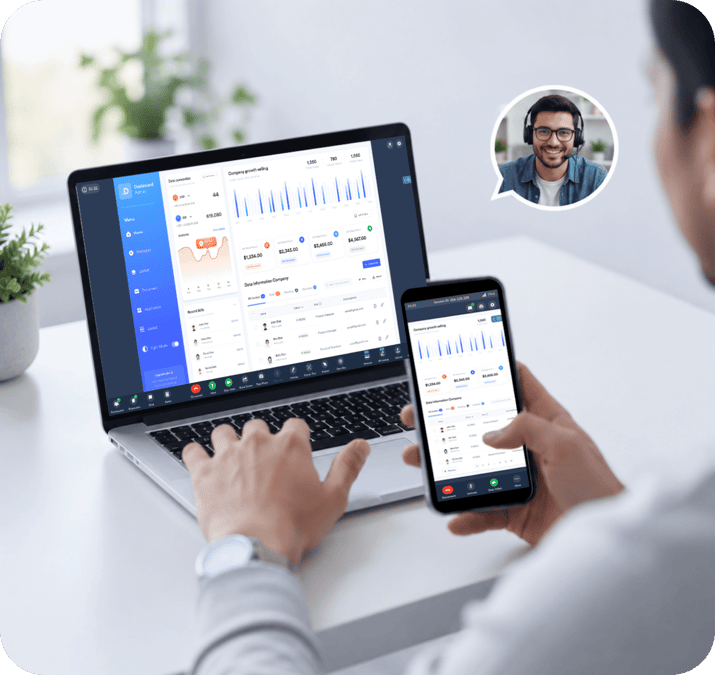
Blitzz puts every no-install option in one platform. Agents start with Co-Browse for your website, use the Mobile SDK for your iOS and Android apps, and switch to live video when the problem is physical. Desktop customers can share their screen in the browser with Blitzz ScreenShare.
.png)
Sessions start from a link by SMS, email or WhatsApp. Agents can point, annotate and capture images, and Owlbert AI can answer questions about a captured screenshot and write the session summary.
Related reading: What is AI agent assist?
Frequently asked questions
Can I see a customer's iPhone screen without an app?
You can see your own website or app on their iPhone with co-browse or an in-app SDK, and you can see anything through the camera with live video. Viewing the entire iPhone screen, including other apps, generally requires an installed app.
Can I see a customer's Android screen from a browser link?
Not the full screen. Android browsers do not support screen capture. Use co-browse, an in-app SDK or live camera video instead.
Is co-browsing safe for mobile customers?
Yes. Co-browse only shares your web pages, not other apps, and sensitive fields can be masked from the agent.
What is the easiest option for non-technical customers?
Live camera video from a text link. The customer taps the link, allows the camera and points the phone at the problem.
Can the agent control the customer's phone?
Not on iPhone through any standard method. With co-browse, agents guide with a cursor and annotations on your site instead.
Help mobile customers faster
See every no-install option in one Blitzz session. Book a demo.

Blitzz Team
The Blitzz Team writes about remote video support, virtual inspections and field service. Our guides come from working with home builders, property managers, warranty teams, contact centers and field service organizations that use Blitzz to see and solve issues without a truck roll.