.png?width=120&height=55&name=Blitzz-Logo-right%20white%20eyes%20-%20not%20transparent%20(3).png)

On this page
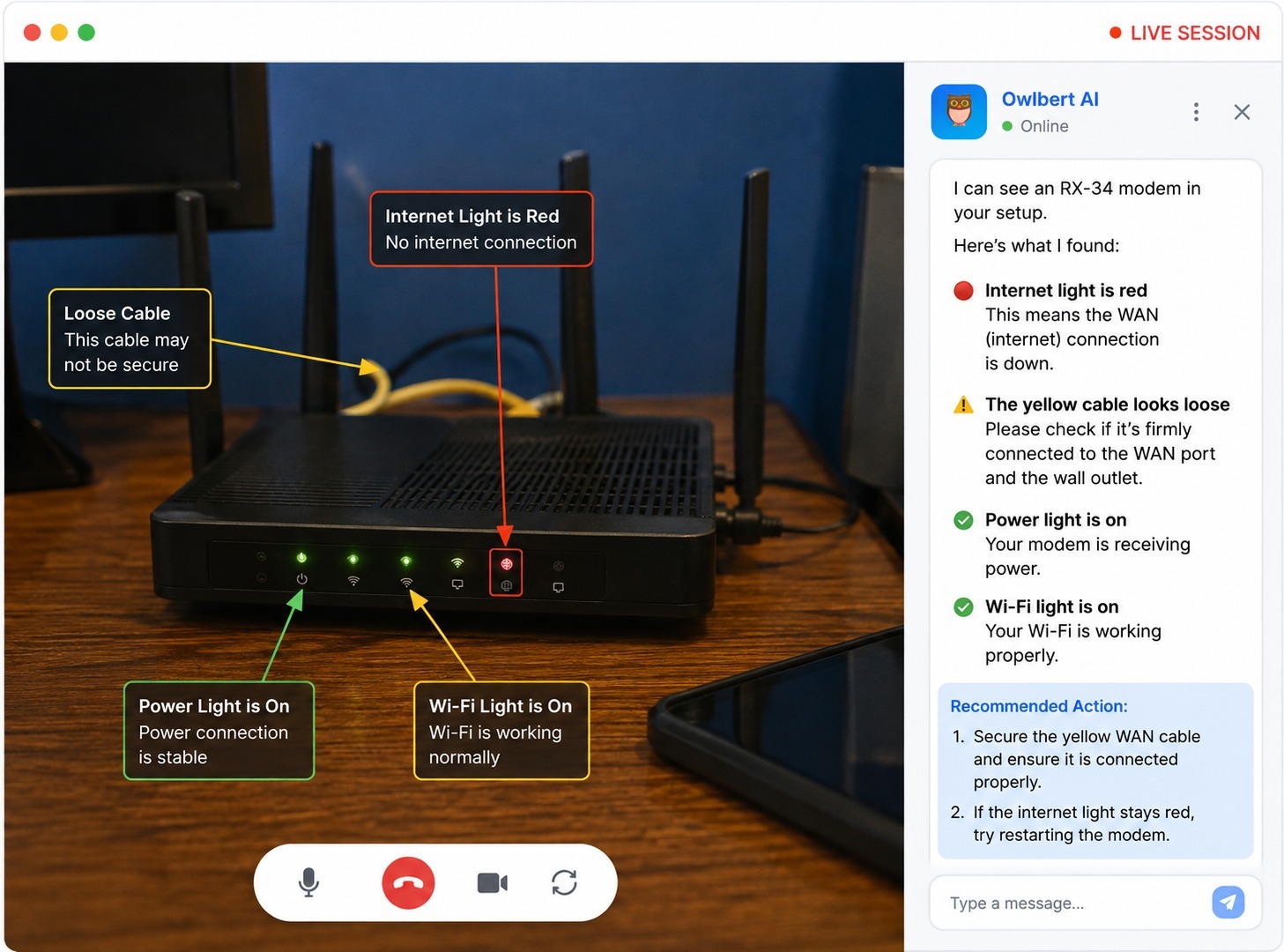
Visual AI works during a live video support call by analyzing the video stream frame by frame while the call is happening, identifying objects and symptoms in real time, matching what it sees against a company's own knowledge base, and surfacing plain-language guidance to the agent before they even finish asking their next question. It's a fundamentally different process than reviewing a recording after the fact — the analysis and the conversation happen simultaneously.
For anyone evaluating this kind of technology, the natural next question is: how does that actually happen, mechanically? What is the AI doing under the hood, and what does that mean for the agent and customer on the call? This guide walks through the process step by step.
The Short Answer
At a high level, visual AI in a live support call performs four tasks continuously, in a loop, for as long as the video session is active:
- It captures and processes individual frames from the live video feed.
- It identifies objects, text, and visual conditions within those frames.
- It cross-references what it identifies against a knowledge base or historical case data.
- It surfaces a plain-language suggestion to the human agent, along with supporting evidence.
This loop runs continuously and quickly enough that suggestions appear while the conversation is still unfolding, not minutes later. The agent experiences it less like using a separate tool and more like having a knowledgeable colleague looking over their shoulder.
Step One: Capturing and Processing the Video Feed
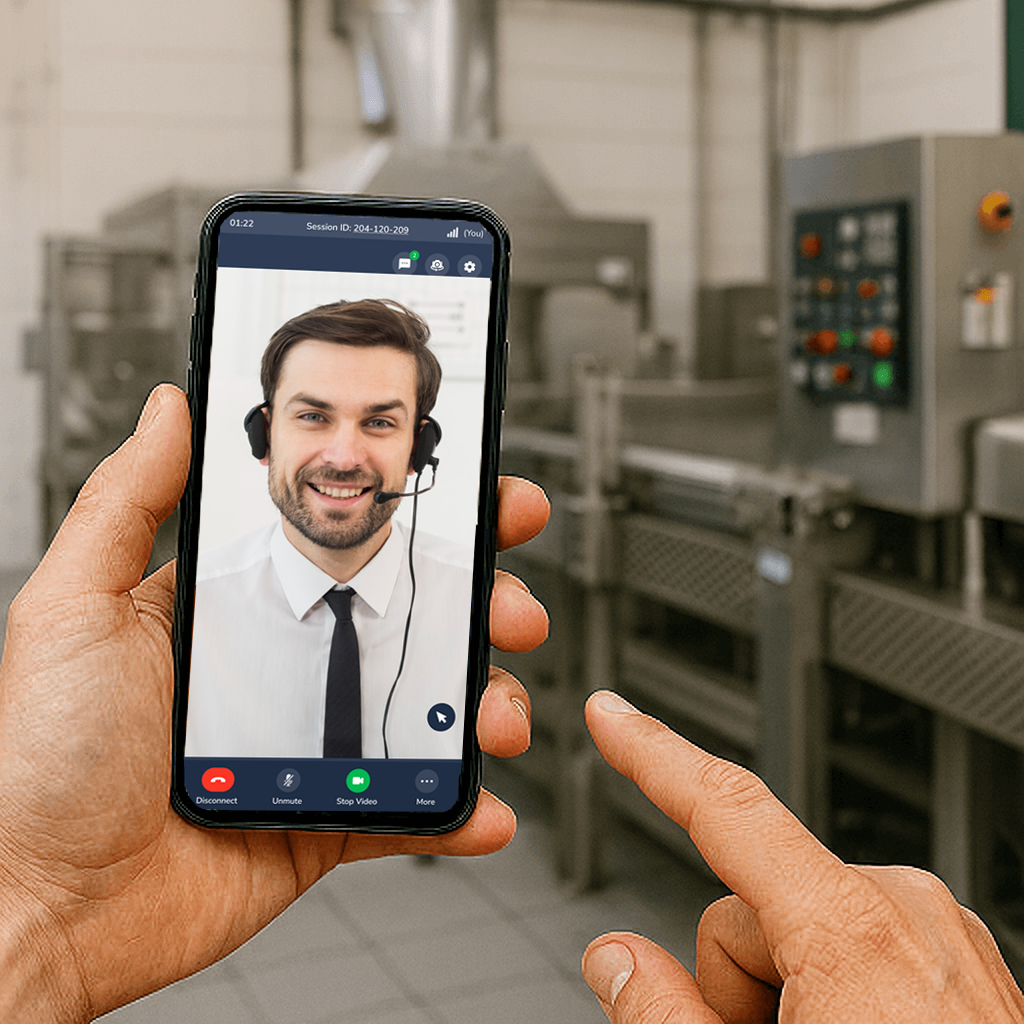
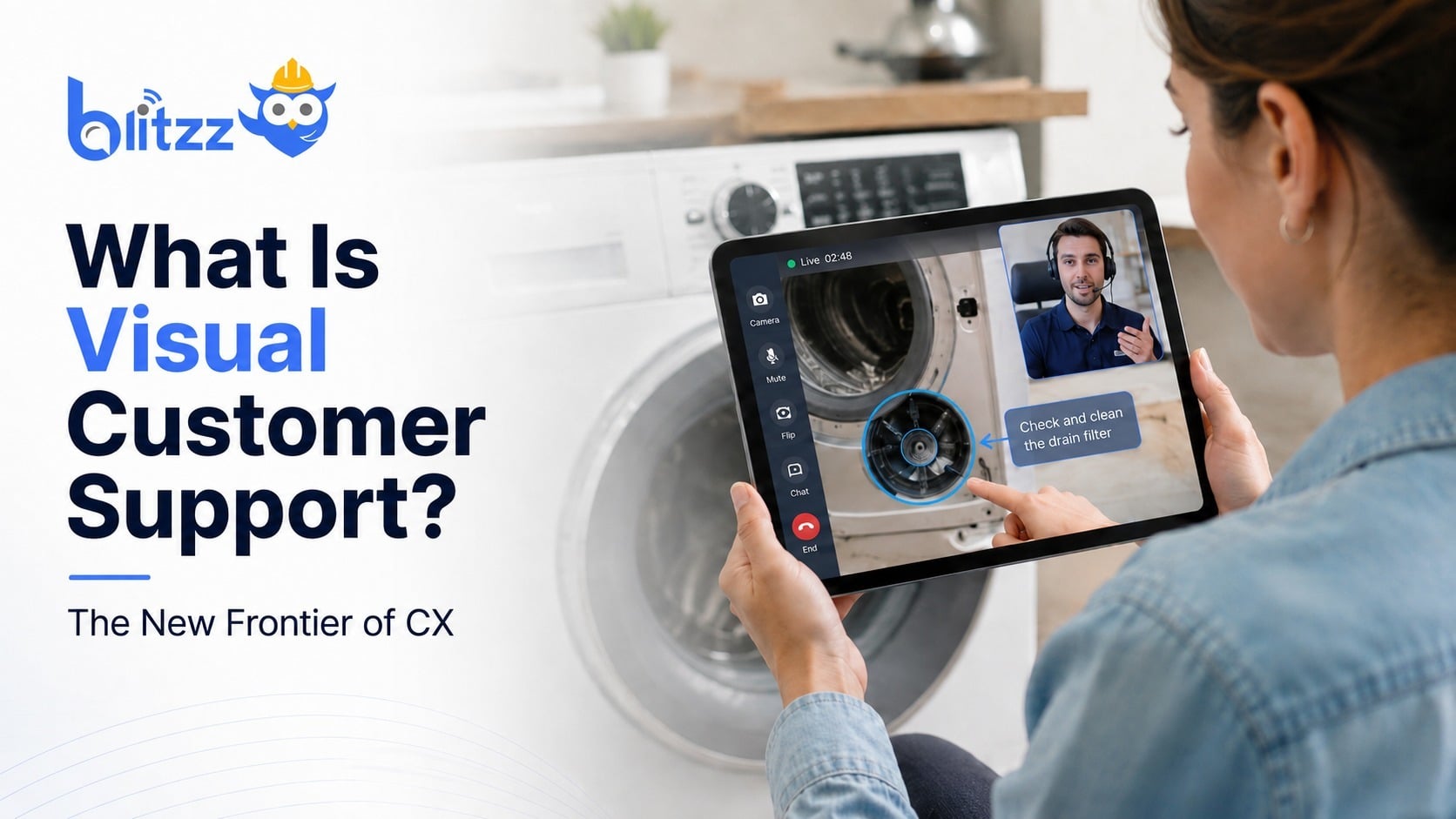
A live video support session typically starts when a customer opens a secure link in their browser — no app download required — which activates their device's camera and streams it to the agent through a live video session. From the moment that stream begins, the visual AI has access to the same feed the agent sees.
Rather than analyzing every single frame of video (which would be computationally wasteful, since most frames look nearly identical to the one before), the system samples frames at intervals and processes them individually. This is enough to catch meaningful changes — a customer panning to a new angle, a light changing color, a new piece of equipment coming into view — without needing to process every millisecond of footage.
Step Two: Identifying What's in the Frame
This is the core of what makes visual AI useful: turning pixels into meaning. During this step, the system is typically looking for a combination of things:
Object and equipment recognition. The AI attempts to identify what physical object is in frame — a specific router model, an HVAC unit, a vehicle part — based on shape, markings, and visual patterns it has learned to associate with that equipment.
Text and number extraction. Serial numbers, model numbers, and error codes printed on equipment can often be read directly from the video frame using optical character recognition, removing the need for a customer to read numbers aloud, which is a common source of miscommunication.
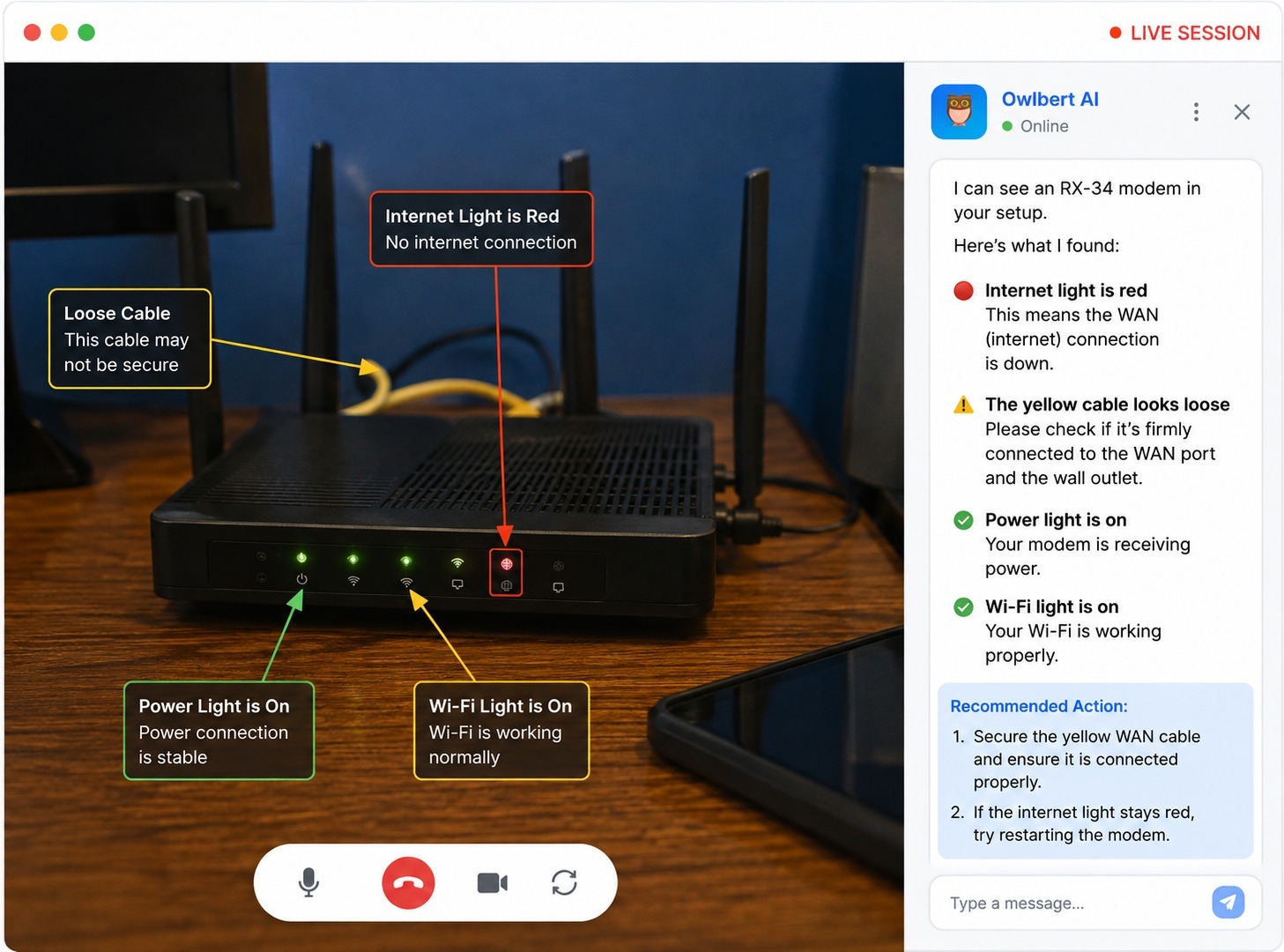
Symptom and condition detection. Beyond identifying the object itself, the AI looks for visual signals that indicate a problem: a red or amber warning light, a crack, a loose or disconnected cable, visible corrosion, or other signs of damage.
Contextual scene understanding. In some cases, the surrounding environment matters as much as the object itself — for example, recognizing that a piece of equipment is installed incorrectly relative to nearby components.
The accuracy of this step depends heavily on how the system was trained. A tool trained specifically on a company's own product catalog, manuals, and past support tickets will recognize that company's equipment far more reliably than a generic visual recognition system trying to guess at an unfamiliar product line.
Step Three: Reasoning From Symptom to Cause
Identifying an object or a warning light is only half the job. The next step is connecting that visual information to a probable explanation. This is where the AI moves from description to diagnosis.
For example, a solid red status light on a specific router model isn't just a visual detail — paired with that model number, it may correspond to a known and well-documented failure pattern, such as a WAN connection failure during boot. The AI's job in this step is to make that connection automatically, the same way an experienced technician would recognize the pattern from memory.
This reasoning step is what separates AI Agent Assist from simple image recognition. A basic image classifier might correctly label an object as "router," but a reasoning layer on top of that recognition is what turns "router" plus "red light" into an actionable diagnosis.
Step Four: Matching Against a Knowledge Base
Once the AI has a working diagnosis, it searches the company's own support content — manuals, troubleshooting articles, past resolved tickets — for the matching fix. This is conceptually similar to a search engine, but instead of a customer typing a query, the "query" is generated automatically from what the AI just saw and diagnosed.
Well-designed systems don't just return a single answer with no context. They typically show:
- The specific article or ticket that matched, so the agent can verify the source.
- A confidence or match score, indicating how closely the current situation matches the historical case.
- Suggested next steps in order, rather than a wall of text the agent has to parse under time pressure.
This step is also where the system tends to improve over time. As more sessions are resolved and logged, the knowledge base of matched symptoms and outcomes grows, which sharpens future matches — a phenomenon that means the tool tends to get more accurate the longer a company uses it.
Step Five: Surfacing Guidance Without Interrupting the Call
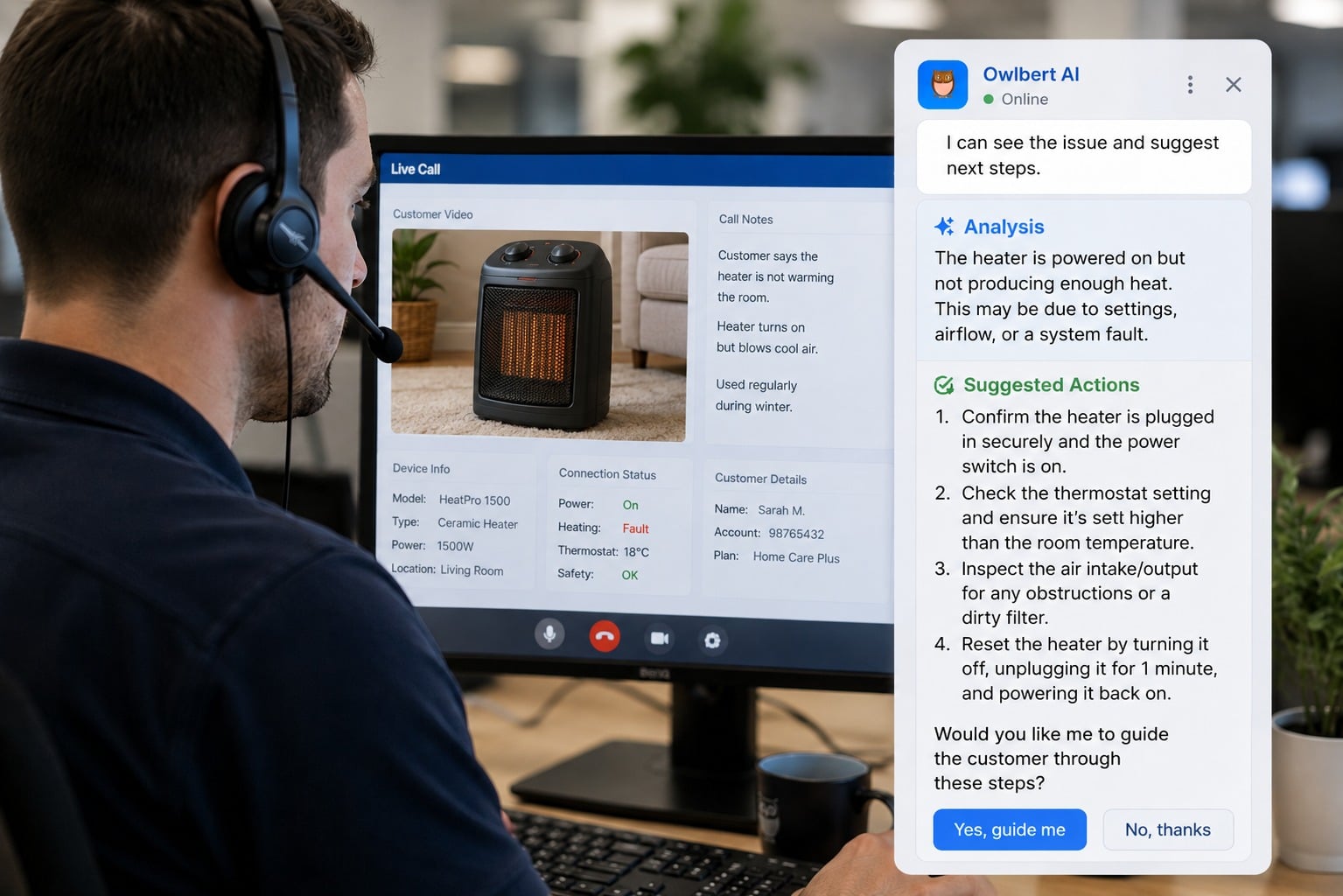
All of this analysis is only useful if it reaches the agent in a way that doesn't slow the conversation down. In practice, this usually means the AI's output appears in a side panel or overlay within the same interface the agent is already using for the video call — not in a separate application requiring a tab switch.
The information is typically presented as a short, plain-language read of the situation ("I can see an RX-450 router with a solid red status light — that usually means the WAN connection failed during boot") followed by the matching troubleshooting steps. The agent reviews this suggestion in the same way they would a colleague's advice: quickly, and with their own judgment still very much in play.
What Happens After the Call
The same visual and conversational analysis that powered the live suggestions during the call can also be used to generate the post-call summary automatically. Rather than an agent manually typing up what happened, the system can produce a summary of the issue, the steps taken, and the resolution, along with any relevant photos captured during the session. This summary typically syncs directly to whatever CRM or ticketing system the team already uses.
This isn't a separate feature bolted on afterward — it's a natural byproduct of the same real-time analysis that powered the live suggestions, since the system has already built a structured understanding of what happened during the call.
How This Differs Across Industries
The core process — capture, identify, reason, match, surface — stays consistent, but what the AI is looking for shifts depending on the industry:
Telecom and internet support. The focus tends to be on identifying networking equipment, cable connections, and status lights, since a large share of issues come down to a small set of recognizable hardware failure states.
Insurance and claims inspections. Here, the emphasis shifts toward documenting damage accurately and consistently — cracks, water damage, structural issues — often with location and timestamp data attached for claims processing and audit purposes.
Manufacturing and heavy equipment. Visual AI in this context often needs to recognize a much wider range of equipment types and specialized components, and the knowledge base it draws from tends to include technical manuals and maintenance histories rather than simple consumer troubleshooting guides.
Field service and home equipment. Recognition here often centers on consumer-facing devices — routers, appliances, HVAC systems — where the customer is walking the camera around their own home or property without any technical assistance.
This is part of why generic, off-the-shelf visual recognition tends to underperform compared to systems trained specifically on a company's own equipment and documentation: the visual vocabulary of a telecom support call and an insurance inspection are simply very different.
Why Real-Time Matters More Than Post-Call Analysis
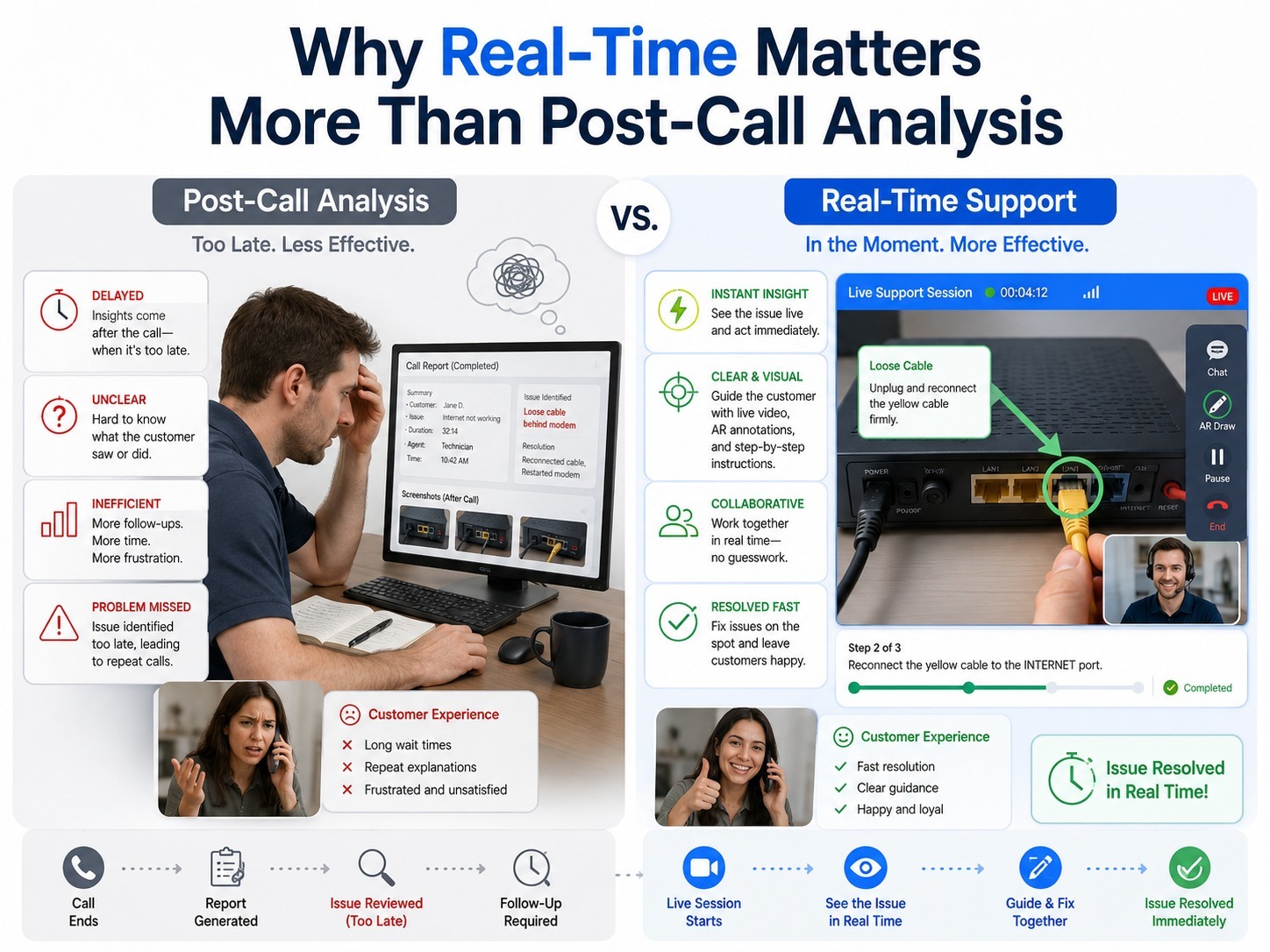
It's worth being direct about why the "live" part of this process matters so much. Plenty of tools can analyze a recorded video after a call ends and generate a summary — that's a genuinely useful feature, but it doesn't help the agent while the customer is still on the line waiting for a resolution.
The value of visual AI during a live call is that it compresses the time between "here's a problem" and "here's the fix" down to seconds, while the agent still has the opportunity to act on it. A brilliant diagnosis delivered five minutes after the call ends doesn't help the customer whose device still isn't working.
Common Questions About Visual AI in Live Video Calls
Does visual AI slow down the video call? Well-built systems are designed to run in parallel with the live video stream without adding noticeable lag, since the analysis happens on sampled frames in the background rather than blocking the video itself.
Can visual AI work with a customer's home camera or phone? Yes, in most implementations. Since the analysis is done on the video feed itself rather than requiring specialized hardware, a standard smartphone or webcam is typically sufficient.
What if the AI misidentifies the equipment? This is why confidence scores and source citations matter. A well-designed system shows how confident it is in a match, allowing the agent to disregard a low-confidence suggestion and rely on their own expertise instead.
Does visual AI require a fast internet connection? Video quality affects how much detail the AI can extract from a frame, but most systems are designed to work across a range of connection speeds, since customers may be connecting from varied environments, including rural or remote locations.
Is the video processed locally or in the cloud? This varies by vendor and is worth asking about directly, particularly for companies in regulated industries with specific data handling and storage requirements.
Can visual AI read text and numbers, not just recognize objects? Yes, most systems combine object recognition with text extraction (often called OCR), allowing them to read model numbers, serial numbers, and error codes directly from the video frame rather than requiring a customer to read them aloud.
The Bottom Line
Visual AI during a live video call works through a continuous loop: capturing the video feed, identifying what's in frame, reasoning from symptom to likely cause, matching against a company's own knowledge base, and surfacing plain-language guidance to the agent in real time. The entire process is designed to happen fast enough that it feels like an extension of the conversation rather than a separate step — turning a live video feed from something an agent simply looks at into something that actively helps them solve the problem in front of them.
As more support and field service teams adopt video as their default channel, understanding this process is useful not just for evaluating a vendor, but for setting realistic expectations about what the technology can and can't do — and where a human agent's judgment still needs to lead.

Blitzz Team
The Blitzz Team writes about remote video support, virtual inspections and field service. Our guides come from working with home builders, property managers, warranty teams, contact centers and field service organizations that use Blitzz to see and solve issues without a truck roll.